Cross Column

Showing posts with label OATS. Show all posts

Wednesday, December 24, 2014

OATS: How to Fix Quarter-Crossing Issue for a Benchmark

In [1], we have described how to record a load testing script using OpenScript for CRM Fuse. In the click path, it includes one of the following step:
  • [4] Select_Quarter_3_2013
After setting up a benchmark, we tend to use it for a long time. Step 4 actually causes an issue which we call it "Quarter-Crossing" issue. What happens is that CRM Fuse is live and advance its list by adding current quarter to the list and removing the last entry from the list.

When that happens (i.e., at end of each fiscal quarter), our Oracle Load Testing (OLT) scenario will fail with validation error as:
ERROR [1] Iteration 1 failed at line (script.java:300). Failed in finding component with xpath=//AdfRichTable[@fullId='atkfr1:0:r22:1:r1:0:pt1:t1']//AdfRichCommandLink[@partialSubmit='true'], no matching pathSegment=/
Basically, ADF internal state[2] will change and the xpath used to retrieve the list item "Quarter 3, 2013" will fail.

In this article, we will discuss how to work around this if it happens.


Quarter Crossing Events


At the end of each quarter, we need to maintain our benchmark CRM Fuse because of the quarter-crossing event. As shown above, "Quarter 3, 2013" is the only list item with seeded data for CRM testing. In other words, "Pinnacle Server Sales per test0000001" will be shown only when "Quarter 3, 2013" is selected. However, at the end of each quarter, the position of it will be shifted down one place on the list. This will cause the validation step in OLT scenario to fail. In addition, "Quarter 3, 2013" eventually will be moved out of the list.

SQL Statements


Whenever scuh events happen, it means you need to recreate OLT scenario by following the steps described in [3]. In addition, you need to update Fusion table (i.e., moo_opty) with new effective date. So, here we show the SQL statements needed for that purpose.

$ORACLE_HOME/bin/sqlplus fusion/fusion

select effective_date from moo_opty where name like 'Pinnacle Server Sales Test%';

EFFECTIVE_DATE
--------------
03-JUN-13

As shown above, "Quarter 3, 2013" is associated with an EFFECTIVE_DATE of "03-JUN-13". On a future date, say, "Quarter 3, 2014", "Quarter 3, 2013" may be shifted out of the list and no longer available for selection. That's why you want to update the above moo_opty table in addition to recreate OLT scenario at each quarter-crossing event.

For demonstration, we have updated the above EFFECTIVE_DATE (of type DATE) column with a new value 01-JUN-14:

update moo_opty set effective_date = to_date('06/01/2014', 'MM/DD/YYYY') where name like 'Pinnacle Server Sales Test%';
commit;


1,000 rows updated.

After the above update, the seed data with "Pinnacle Server Sales per test0000001" will be associated to a new quarter (e.g., Quarter 2, 2014).  But, eventually you may need to update EFFECTIVE_DATE to a later date than 01-JUN-14 if time moves on further.

References

  1. How to Create Load Testing Scripts Using OpenScript
  2. Oracle Application Development Framework - Oracle ADF
  3. OATS: Tie All Processes Together — from OpenScript to Scenario

OATS: All Things about OLT Sessions

Oracle Load Testing(OLT)[1] is a component of Oracle Application Test Suite (OATS), which can simulate hundreds of virtual users accessing the application simultaneously and measures the effect of the load on application performance.

The results of load tests are grouped by sessions which are stored in Oracle database.  Oracle Load Testing then allows you to create customized post-run reports on the results of your load tests.


ORA-01654


After you've run many load tests, eventually you could run into:
ORA-01654: unable to extend index OLT.COUNTERRUN_IDX by 1024 in tablespace USERS
OLT comes with a Session Manager which allows you to manage session data in the database:
  • Edit
    • Displays the Edit Session dialog box for changing the name and description of the session.
  • Delete
    • Deletes the entire selected session data from the database.
  • Delete Virtual User Logs
    • Deletes only the VU log data for the selected sessions. 
The easiest solution to the ORA-01654 is to delete old session data as shown below:


On the other hand, if you are using Oracle EE[2,3] and have enough disk space, all you need to do is:
Use ALTER TABLESPACE ADD DATAFILE statement to add one or more files to the tablespace indicated.

Note that if you are currently using XE, we would recommend you use a dedicated machine for database and use Oracle EE.

Attach to Session


Read [4] for how to set up autopilot.  After setting up the parameters of autopilot, you can run scenarios from the command line.[4]  Assuming you have done that, then you can monitor load test session by attaching to it in OLT.  This enables a tester to share real-time test results and to collaborate with team members during testing.

From menu Session, select Attach.... The current running session as below should be listed.


You can then select how you want to attach to the session:

Monday, July 7, 2014

OATS: How to Create a Scenario for Oracle Load Testing

This article is one of the Oracle Application Test Suite (OATS)[1] series published on Xml and More, which includes the following:
In this article, we will show how to create scenarios for Oracle Load Testing (OLT).


Oracle Load Testing


What is Oracle Load Testing?   Oracle Load Testing is a component of OATS, the centerpiece of the Oracle Enterprise Manager solution for comprehensive testing of Web applications.  It allows you to validate the performance and scalability of your Web applications. It can simulate hundreds of virtual users accessing the application simultaneously and measures the effect of the load on application performance.  Oracle Load Testing's virtual users can generate multithreaded browser requests while performing rigorous functional validation under load conditions.

Here is the typical workflow. For the sake of understanding, assume that script is created on machine A and OLT is on machine B.  In [2], we have shown how to export and import scripts to OLT.  Here we will show how to create scenarios using imported scripts for OLT.

Scenario


What is a scenarioScenario in OLT is an entity for configuring and simimulating virutal users.  Once you have defined a scenario and set the profile parameters, you submit the scenario to the Oracle Load Testing Autopilot. There are two ways to submit Scenarios to Autopilot:
  1. Submit without Starting the Scenario
    • This allows you to specify the start and stop times for running the scenario profiles.
  2. Submit and Start the Scenario
    • OLT automatically opens the Autopilot tab with the scenario loaded.
To submit a Scenario and start the scenario (i.e., 2nd approach), you can click on the "Submit and start test" button (see below).  Here we will focus only on the 1st approach.  After saving parameters to a scenario, later you can start it from a command line.


To add Profiles to a Scenario, you click the Scenario Detail button to display the Edit Scenario Details dialog box.


The most important parameters are shown at the top-level of Build Scenarios tab.  For example, we have configured 200 virtual users, selected "Recorded/Random" for Think Time, and chose "OLT Server" (default) to run the virtual users.  Since we have added "Random" modifier in the Think Time, we need to go down to the detail-level to specify the lower and upper limits (i.e., 15% to 185% of the original recorded time).


Set up Autopilot


As mentioned before, we are taking the 1st approach to save settings to a scenario and sumbit it to Autopilot for future running.  In this case, we need to set up the parameters of autopilot by selecting the "Set up Autopilot" tab.


Here you can specify how virtual users will be ramped up and when to start or stop the load test.  In our case, we didn't use OLT ServerStats and it was not set up here. 

ServerStats lets you monitor a variety of server-side application, database, system, and Web server statistics. You can configure OLT ServerStats to display real-time performance statistics for the various hosts and services available from the server, such as percentage of CPU usage, memory usage, Web server statistics, etc.

Running Scenarios from the Command Line


You can run and stop scenario files using the command line Java file OLTCommandLine.jar located in the /lib directory under the installation directory. Use the following command syntax to start a scenario:

cd ${OATS_HOME}/lib
OLTCommandLine.jar -run -session=sessionName 
  -scenarioFile=${OLT_SCENARIO_DIR}/scenarioFile.scn 
  -OLTServer=hostName:portnumber
  -user=username -password=password [-log=logfilename]

Use the following command syntax to stop a scenario:

cd ${OATS_HOME}/lib

OLTCommandLine.jar -stop -session=sessionName -OLTServer=hostName:portnumber 
-user=username -password=password

The following are the command parameters:
  • run
    • Executes the selected scenario until the stop command is issued or the stop conditions specified in the scenario are reached.
  • session
    • Specifies the name to use for the session. If you do not do not provide a session name, Oracle Load Testing generates a session name.
  • scenarioFile
    • The scenario file to load. Specify the full path and file name of the scenario file. Scenario files have a .scn extension.
  • stop
    • Shuts down the specified session.
    • The Stop command is not required if the specified Scenario being run has a Stop condition of some defined time or number of iterations saved in the Autopilot settings.
    • You can not use both "-Run" and "-Stop" in the same command.
  • session
    • Specify the session to be shut down. The session name is automatically generated when you run the scenario. You can get the session name from the console or the log file specified with the scenario run command line parameters.
  • OLTServer
    • Specify the Weblogic server name which hosts OLT. The port number is required.
  • user
    • Specify the admin user name of the Weblogic server. The default username is "oats".
  • password
    • Specify the admin user password of the Weblogic server.
  • log
    • (Optional) Redirects console output to logfilename.
    • Specify the path and file name to use for the log file.

References

  1. Oracle Application Testing Suite (OATS)
  2. OATS: How to Export and Import Scripts from Windows to Linux

Wednesday, July 2, 2014

OATS: How to Export and Import Scripts from Windows to Linux

This article is one of the Oracle Application Test Suite (OATS)[1] series published on Xml and More, which includes the following:
In this article, we will show how to create scripts in OpenScript (running on Windows only) and use it in OLT[2] running on Linux.

Export Scripts


In [3], we have shown how to create load testing scripts using OpenScript.  However, our Oracle Load Testing (OLT) will be run from Linux systems. So, we need to export script, copy it to Linux, and import it to OLT.

To export the script, you select File tab and Export Scripts... 


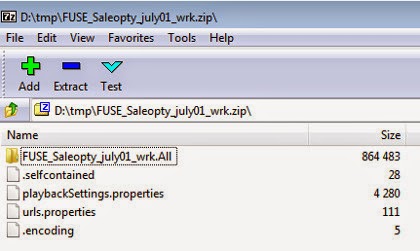
All the exported files are essentially zip files and can be opened with any unzip tool.  For example, here is the script named FUSE_Saleopty_july_1_wrk.zip we have exported.  Within folder FUSE_Saleopty_july_1_wrk.All, there is a subfolder named databanks which hold input data that can be automatically fed into your Web application during Load Testing.[4] Besides folders, the script also holds other script assets.[6]


Import Scripts


After copying the load testing script to your Linux system, you can import it to OLT.  To import scripts, select Tools tab and Import... .

A file-upload wizard allows you to select the script (i.e., zip file) to OLT. Note that we have copied the script to our home directory. You should NOT copy it to the Default repository (i.e. /OFT) which will be the final destination of import.


When the script is imported into OLT (by default, the destination of import is the Default repository), it renames the file as FUSE_Saleopty_july01_wrk.openScriptZip.  It then unzips the imported script.


For example, a new folder named FUSE_Saleopty_july01_wrk.All was created in the Default repository:
  • ${OATS_HOME}/OFT
In the next OATS article, we will show how to create a scenario from the imported load testing script.

References

  1. Oracle Application Testing Suite (OATS)
  2. Oracle Load Testing (OLT)
  3. How to Create Load Testing Scripts Using OpenScript
  4. How to Configure Scripts to use Databanks in OATS 
  5. Oracle Application Testing Suite (OATS): Few Tips & Tricks
  6. Best approaches to script assets
    • Do not use Absolute Paths when referring to assets or saving assets. Oracle Load Testing does not support absolute paths.
    • OpenScript, Oracle Test Manager, Oracle Load Testing, and all command-line agents should all use the same shared repository names and paths.
    • Do not refer to an asset in another repository by a relative path.
  7. OATS: Tie All Processes Together — from OpenScript to Scenario (Xml and More)


    Tuesday, November 12, 2013

    How to Restart OATS Services

    This article is one of the Oracle Application Test Suite (OATS)[1] series published on Xml and More, which includes the following:
    In this article, we will show how to restart OATS services on the Linux system. The Linux system referenced here is Oracle Linux:[2]

    $ cat /etc/*-release
    
    Enterprise Linux Enterprise Linux Server release 5.8 (Carthage)
    Oracle Linux Server release 5.8
    Red Hat Enterprise Linux Server release 5.8 (Tikanga)

    /sbin/service


    Red Hat (i.e., RHEL 5) includes the service utility to help you manage your start up scripts and save you a lot of typing. This is handy when you're managing the already existing services (e.g., OATS services). /sbin/service is just a shell script (see Appendix) that comes as part of Red Hat's initscripts package.[4]


    OATS Services


    There are three OATS services running on Linux.[5] To restart them, you use the following commands:

    # /sbin/service OracleATSAgent [start|stop]
    # /sbin/service OracleATSServer [start|stop]
    # /sbin/service OracleATSHelper [start|stop]

    There is also a command option (i.e., "status") that allows you to check their current status:

    #/sbin/service OracleATSHelper status
    OATS Helper Service is running

    Note that you need to be the superuser to run the above commands. Also, if you install OATS database on the same server, you need to start your DB first before you restart OATS services.

    Appendix


    cat /sbin/service
    #!/bin/sh
    
    . /etc/init.d/functions
    
    VERSION="`basename $0` ver. 0.91"
    USAGE="Usage: `basename $0` < option > | --status-all | \
    [ service_name [ command | --full-restart ] ]"
    SERVICE=
    SERVICEDIR="/etc/init.d"
    OPTIONS=
    
    if [ $# -eq 0 ]; then
       echo "${USAGE}" >&2
       exit 1
    fi
    
    cd /
    while [ $# -gt 0 ]; do
      case "${1}" in
        --help | -h | --h* )
           echo "${USAGE}" >&2
           exit 0
           ;;
        --version | -V )
           echo "${VERSION}" >&2
           exit 0
           ;;
        *)
           if [ -z "${SERVICE}" -a $# -eq 1 -a "${1}" = "--status-all" ]; then
              cd ${SERVICEDIR}
              for SERVICE in * ; do
                case "${SERVICE}" in
                  functions | halt | killall | single| linuxconf| kudzu)
                      ;;
                  *)
                    if ! is_ignored_file "${SERVICE}" \
                        && [ -x "${SERVICEDIR}/${SERVICE}" ]; then
                      env -i LANG="$LANG" PATH="$PATH" TERM="$TERM" "${SERVICEDIR}/${SERVICE}" status
                    fi
                    ;;
                esac
              done
              exit 0
           elif [ $# -eq 2 -a "${2}" = "--full-restart" ]; then
              SERVICE="${1}"
              if [ -x "${SERVICEDIR}/${SERVICE}" ]; then
                env -i LANG="$LANG" PATH="$PATH" TERM="$TERM" "${SERVICEDIR}/${SERVICE}" stop
                env -i LANG="$LANG" PATH="$PATH" TERM="$TERM" "${SERVICEDIR}/${SERVICE}" start
                exit $?
              fi
           elif [ -z "${SERVICE}" ]; then
             SERVICE="${1}"
           else
             OPTIONS="${OPTIONS} ${1}"
           fi
           shift
           ;;
       esac
    done
    
    if [ -x "${SERVICEDIR}/${SERVICE}" ]; then
       env -i LANG="$LANG" PATH="$PATH" TERM="$TERM" "${SERVICEDIR}/${SERVICE}" ${OPTIONS}
    else
       echo $"${SERVICE}: unrecognized service" >&2
       exit 1
    fi
    

    References

    1. Oracle Application Testing Suite
    2. Oracle Linux
      • Oracle Linux, formerly known as Oracle Enterprise Linux, is a Linux distribution based on Red Hat Enterprise Linux (RHEL), repackaged and freely distributed by Oracle, available under the GNU General Public License (GPL) since late 2006
    3. How To Install Services on Linux
    4. Understanding your (Red Hat Enterprise Linux) daemons
    5. OpenScript Functional Testing Introduction
      • Services installed by ATS Setup on Linux:
        • Oracle ATS Agent: Remote Agent Service used for Load testing
        • Oracle ATS Helper: OpenScript Helper Service.
        • Oracle ATS Server: Oracle Load Testing & Oracle Test Manager Console. (Weblogic server)
    6. OATS: Tie All Processes Together — from OpenScript to Scenario (Xml and More)

    Thursday, November 7, 2013

    ORA-01691: unable to extend lob segment

    This article is one of the Oracle Application Test Suite (OATS)[1] series published on Xml and More, which includes the following:
    Today, I have seen the following message:
    ORA-1691: unable to extend lobsegment OLT.SYS_LOB0000079598C00002$ by 128 in tablespace USERS
    from alert/log.xml, which was reported by the Oracle DB of OATS.[1]

    In this article, we will show:
    1. How to investigate
    2. How to provide the solution

    ORA-01691


    If you see "ORA-01691" error, normally this means that the tablespace is full or that there is not an extent (aka chunk) available that fits the size needed.[2]

    To investigate further, you can query the DB with the following SQL commands:[2]

    SQL> set long 100000
    SQL> select dbms_metadata.get_ddl('TABLESPACE','USERS') from dual;
    
    DBMS_METADATA.GET_DDL('TABLESPACE','USERS')
    --------------------------------------------------------------------------------
    
      CREATE TABLESPACE "USERS" DATAFILE
      '/scratch/aime1/app/oracle11.2.0.3.0/oradata/ps6stg7/users01.dbf' SIZE 5242880
    
      AUTOEXTEND ON NEXT 1310720 MAXSIZE 32767M
      LOGGING ONLINE PERMANENT BLOCKSIZE 8192
      EXTENT MANAGEMENT LOCAL AUTOALLOCATE DEFAULT
    NOCOMPRESS  SEGMENT SPACE MANAGEMENT AUTO
       ALTER DATABASE DATAFILE
      '/scratch/aime1/app/oracle11.2.0.3.0/oradata/ps6stg7/users01.dbf' RESIZE 34359
    214080

    When I checked the used% of tablespace USERS, it showed that it's almost 100% full. So, the error is due to the tablespace being full.

    SQL>  select * from dba_tablespace_usage_metrics order by used_percent desc;
    
    TABLESPACE_NAME                USED_SPACE TABLESPACE_SIZE USED_PERCENT
    ------------------------------ ---------- --------------- ------------
    USERS                             4194128         4194302   99.9958515
    

    The Solution


    You can find out what schema (or user) uses tablespace USERS by issuing the following SQL command:

    SQL> select owner, table_name,tablespace_name from dba_tables where tablespace_name='USERS';
    

    From the output, we know tablespace USERS is shared by the following users:
    In our environment, we have used OLT to run load tests. For OLT, typically it is the session data that is taking most of the space in the DB. As an immediate workaround, you can try removing sessions from OLT Controller UI. However, it may run very slowly because tablespace USERS has already run out of space. To facilitate the session-removing task from OLT Controller UI, I have added 100MB to the tablespace USERS by giving it a second datafile:

    SQL> ALTER TABLESPACE users ADD DATAFILE '/scratch/aime1/app/oracle11.2.0.3.0/oradata/ps6stg7/users02.dbf' size 100m;
    
    Tablespace altered.
    

    By adding some space to the tablespace, it helped smooth out the task of session removing. Admittedly, it was still a slow process. But, the solution worked.

    References

    1. Oracle Application Testing Suite
    2. ORA-01691: unable to extend lob segment (OTN)
    3. Administering Tablespaces
    4. SQL Purge command
    5. Folllow @OracleAskTom
    6. Oracle Load Testing Overview
    7. Oracle Test Manager Overview

    Saturday, November 2, 2013

    How to Create Load Testing Scripts Using OpenScript

    This article is one of the Oracle Application Test Suite (OATS)[1] series published on Xml and More, which includes the following:

    In this article, we will show:
    • How to create load testing scripts using OpenScript[2]

    Introduction to OpenScript


    Application Testing Suite (OATS) is comprised of several tightly integrated products.[1] The script designer —OpenScript—only runs on Windows, but all the runtime components are available for both Linux and Windows. OpenScript is a scripting platform for creating automated test scripts in Java.

    You can use OpenScript to create scripts for different testings. For example, OATS supports
    • Functional Testing
    • Load Testing
    In this article, we will show you how to create load testing scripts in OpenScript.

    The Platform


    Scripting platform is based upon the Eclipse open source development environment. Initial OpenScript product provides access to a limited set of the Eclipse development environment.

    The workbench is the base layer of software and code that provide the foundation on which the OpenScript Modules and Application Programming Interfaces (APIs) operate. Each Workbench window contains one or more perspectives. OpenScript Workbench provides the following perspectives:
    • Tester perspective
    • Developer perspective
    • Reset perspective
    Workspaces are created in Oracle OpenScript. Workspaces store project-related script files and Results Log files. You can use them to organize your various testing projects. Three levels of management are provided:
    • Scripts (lowest)
    • Folders
    • Repositories (highest)
    You can download OATS from [3]. The version used in this demonstration is
    Version: 12.3.0.1 Build 376

    Cheat Sheet


    Like every recording task, you need to rehearse and make sure all glitches are resolved before the final recording. If you have decided the click path, prepare a cheat sheet like below:

    [1] Bring_up_FUSE_URL
    [2] Login_SALESREPUSER00001_Welcome1
    [3] Click_the_Opportunities_Card
    [4] Select_Quarter_2_2013
    [5] Drilldown_on_Pinnacle_Server
    [6] Click_on_Sales_Account_Picker
    [7] Search_for_CUSTOMER_101328336
    [8] Click_Cancel
    [9] Click_Add_Revenue_Item
    [10] Select_Type_Item
    [11] Click_Product_LOV_and_Search
    [12] Search_for_Elite_Pro_DG_452
    [13] Select_Product_and_click_Ok
    [14] Click_Cancel
    [15] Logout

    The numbering of step is for human readers and can help the recording. Each row on the list corresponds to a click in your click path and will become the title of step group in OpenScript recording.

    OpenScript Preferences


    Before recording, there are some preferences you want to set. To set them, you click on View and then OpenScript Preferences. For example, we would like to control the grouping, naming and numbering of step groups by ourselves (see "Cheat Sheet"). So, set your "ADF Load" preferences as below:


    Creating a New Project


    In this demonstration, we will create an open script for load testing (File > New...). Our web application is CRM FUSE. So, we have selected "Oracle Fusion/ADF" wizard from the New Project (see above).
    • Oracle Fusion/ADF
      • This option lets you create a new script for load testing of Oracle Application Development Framework (ADF)-based applications and other applications that utilize HTTP and ADF protocols at the protocol level.

    At the next step, you are asked to provide a Script Name. So, we set them as follows:
    • Create script as a Function Library (unchecked)
    • Script Name: FUSE_Saleopty_oct07_wrk
    Finally click Finish to create a new script. The resulting script will contain the Initialize, Run, and Finish nodes. The Run node will contain recorded HTTP protocol navigations based upon the defined Step Group preferences and the navigations and ADF protocol for actions performed during recording. You can edit the script tree or Java code to customize the script.[4]

    In the following sections, we will demonstrate how to create:
    • First step group
    • Remaining step groups

    Creating First Step Group


    Creating the first step group is a bit different from the rest. So, we describe it separately. Note that we have NOT clicked on the record button yet.

    Before we click on the record button (i.e., red circle), create the first message group as shown below:
    Open your notepad and copy the first row into the title field as shown below. Then click OK.

    Note that we have chosen "No delay" for the first step. But, for other steps, we will specify "Delay 44 secs."

    Start Recording


    Now click the record button. Your chosen browser (for our demonstration, it's Firefox) will be brought up. Copy your URL:
    http://www.mycompany.com:9006/customer/faces/CrmFusionHome
    into the address field and hit Enter. This finishes the recording of the first step group.

    Next repeat the following subtasks for the remaining groups until it finishes:
    1. Creating a new step group in OpenScript
      • Right select previous Step Group to bring up context menu and select New > Step Group
    2. Copying the next row of click path from Notepad
    3. Clicking next step in your Browser


    Finally, don't forget to stop the recorder.

    Exporting Script


    If your runtime environment is Linux, you need to export script created in OpenScript as follows:
    File > Export Script...

    For example, a new zip file was created in our default repository:
    D:\OracleATS\OFT\FUSE_Saleopty_oct07_wrk.zip
    You can then copy it to your Linux box:
    scp FUSE_Saleopty_Server1_wrk.zip aime1@mylinuxserver:/scratch/aime1/work

    References

    1. Oracle Application Testing Suite
    2. OpenScript for Load Testing Script Troubleshooting (Tutorial)
      • Version: 12.3.0.1 Build 376 was used in this article.
      • This version requires Firefox 10.0 ESR (Windows download).
    3. Oracle Application Testing Suite Downloads
    4. Oracle Application Testing Suite 12.x: Oracle Load Testing Overview
    5. OATS: Tie All Processes Together — from OpenScript to Scenario (Xml and More)

    Tuesday, October 8, 2013

    How to Configure Scripts to use Databanks in OATS

    This article is one of the Oracle Application Test Suite (OATS)[1] series on Xml and More, which began with the following articles:
    In this article, we will show you:
    • How to set up databanks in OpenScript[4]
    • How to configure scripts to use databanks

    Databanks


    Databanks are used to hold input data that can be automatically fed into your Web application during Load Testing[5].  In this article, we have created a new script in OpenScript using ADF Load Test Module for the load testing of CRM FUSE (i.e., Fusion CRM with FUSE interface).
    At the login step (i.e., step 2), we have used the following credentials:
    • SALESREPUSER00001 /Welcome1
    during script recording in OpenScript.  To do load testing, we need to use different users to drive our Web application .  In the following, we will show you how to achieve that.

    Substitute Variables


    After clicking the Post Data node, list of parameters used in HTTP Post is displayed.  As you can see that the value of userid was recorded as SALESREPUSER00001.  So, we need to configure it to use a databank.
    After clicking on Edit..., it brings up the Parameter message box.  Let's click on the second Substitute button next to the Value field.

    This brings up Substitue Variable window.  Next we need to add new databank before we can use it for variable substitution.

    Note that before we started OpenScript, we have copied an existing databank named UserName.csv in the the subfolder of our workspace (i.e., FUSE_Saleopty_oct07_wrk).  Therefore, you have seen it appearing in the right panel.  For our script, we have chosen to store our databank "Relative to current script".

    If you open the databank, you can see different user names are stored in it.  Note that all users will use the same password in our case.

    After adding new databank, the value of userid has been updated to:

    Finishing variable substitution, a new node (i.e., GetNextDatabankRecord) was shown next to "Run" node.


    You can click on the new node to edit it.  But, the default (i..e, Next Record) works for us.


    After we have configured our script to use databank, we can test it using "Iterate" playback.


    Clicking on the Iterate button, this allows you to specify how many iterations you want to test.  In the following example, we have set it to be three times.


    Next Steps


    After testing our script running OK in the OpenScript (which runs on Windows only), we proceed with the following steps:
    • Export script to a ZIP archive (i.e., FUSE_Saleopty_oct08_wrk.zip)
    • Copy the ZIP archive file to the Oracle Load Testing (OLT) server (which runs on Linux)
    • In OLT, we have imported the OpenScript ZIP to a scenario.
    • After setting up Autopilot, we have run load testings using the databank to feed CRM FUSE with different users.
    A new article describing the above steps will be posted in the future given time permitted.

    Monday, October 7, 2013

    Removing "Compatibility setting is not supported" Warning before You Do OpenScript Recording

    This article is one of the Oracle Application Test Suite (OATS)[1] series on Xml and More, which began with the following article:
    In this article, we will show one of the warnings that you may want to remove before recording your scripts using OpenScript [3]in OATS[1]:

    Compatibility Setting


    You can use either Firefox or Internet Explorer to record scripts. In this example, we used IE8. The application we are recording with is Fusion CRM with FUSE interface.

    After provided home page URL and logged in, we have seen the above warning. Don't know exactly how OATS records this Message box. But, this is not the regular step of the application task flows.[5] So, you should remove this issue before any recording.

    The Solution


    In IE8, you select:
    • Tools > Compatibility Setting

    Then the following Compatibility View Settings will be shown:
    To fix the compatibility warning, you just uncheck the following item:
    • Display intranet sites in Compatibility View

    References

    1. Oracle Application Testing Suite (a comparable product to LoadRunner)
    2. Auto-Correlating Session IDs in Oracle Application Test Suite (OATS)
    3. OpenScript for Load Testing Script Troubleshooting (Tutorial)
    4. Turn off Compatibility View
    5. Oracle ADF Task Flow in a Nutshell (Xml and More)
    6. How to Configure Scripts to use Databanks in OATS (Xml and More)

    Wednesday, August 28, 2013

    Auto-Correlating Session IDs in Oracle Application Test Suite (OATS)

    Similar to HP LoadRunner, Oracle Application Test Suite (OATS)[1] is an automated performance and test automation product from Oracle for monitoring system behavior and application performance. It's especially useful for Oracle Fusion Application's performance evaluation.

    Oracle Open Script (or Oracle Functional Testing) is one of the components in OATS, which is integrated with Oracle Load Testing and Oracle Test Manager. It is also a load testing script generator, which is integrated with Eclipse to support script development and debugging. In the current offering, it only runs on Windows.

    Correlation


    Correlation of dynamic session values is a major task for load test scripting[2]. When a server in AUT (application under test) exchanges dynamic session values with the browser. OpenScript can auto-correlate dynamic session values—For example session IDs.

    What's Session ID?


    Session ID is used in session tracking.  Session tracking enables you to track a user's progress over multiple servlets or HTML pages, which, by nature, are stateless. A session is defined as a series of related browser requests that come from the same client during a certain time period. Session tracking ties together a series of browser requests—think of these requests as pages—that may have some meaning as a whole, such as a shopping cart application.

    Session ID is a piece of data that is exchanged between the application's web server and the user agent (or browser). It is typically used to identify a specific user logged on to the application for a particular duration of his/her visit (or session).

    Session ID is given per Session. It is often destroyed when the user logs off from the application. Next time you visit the same site, you will have a different session ID. The correlation task is to identify these dynamic values and substitute variables for them in the load testing scripts.

    As you know, Oracle Fusion Applications maintain a rich set of dynamic session values. Correlation done manually requires in-depth knowledge of the application itself and can also be error prone. Fortunately, most correlations needed for successful playbacks can be done automatically by Oracle Open Script. For example, it auto-correlates Session IDs.

    Different Ways of Storing Session IDs


    There are multiple ways for a web page to pass session ID to a web server. Session ID can be stored in:
    • Cookie[6]
    • URL
    • HTML page

    Storing Session ID in Cookies


    Cookie is the text information that application places in the client's hard disk. Browser sends the cookie back to the application to keep the state. On WebLogic Server, use of session cookies is enabled by default and is recommended, but you can disable them by setting cookies-enabled property[3] to false.
    If cookie is enabled on the browser, you often find the following entry in the HTTP headers:
    • JSESSIONID=HDe6IhnMFZFtKrVsNi0eUsZ0NWaaIaw_OT2vW7CDpZ8sfz9v4Hqf!-777642468!-553692576;
    Note that JSESSIONID is the default session tracking cookie name used by WLS. You can configure WebLogic Server session tracking by defining properties in the WebLogic-specific deployment descriptor,weblogic.xml. For a complete list of session attributes, see session-descriptor[3].

    Storing Session ID in URL


    Session ID can be sent back to the server as a string appended to URL following a question mark (i.e., "?")
    On WLS, you can enable URL rewriting by setting url-rewriting-enabled property, which encodes the session ID into the URL and provides session tracking if cookies are disabled in the browser. However, storing Session ID in URLs is less secure than storing it in cookies[5].

    Storing Session ID in HTML Page


    Finally, session ID can also be stored in the hidden field of a HTML page and submitted by the Post Command:

    • <input type="hidden" name="sessionID" value="54321abcd">

    Most user agents (or browsers) allow you to store information in a HiddenField control, which renders as a standard HTML hidden field. A hidden field does not render visibly in the browser, but you can set its properties just as you can with a standard control. When a page is submitted to the server, the content of a hidden field is sent in the HTTP form collection along with the values of other controls. A hidden field acts as a repository for any page-specific information (including Session ID) that you want to store directly in the page.

    References

    1. Oracle Application Testing Suite
    2. OpenScript for Load Testing Script Troubleshooting (Tutorial)
    3. weblogic.xml Deployment Descriptor Elements
    4. Extended Session ID format in WebLogic Server (12.1.1)
      • A server startup flag, -Dweblogic.servlet.useExtendedSessionFormat=true, retains the information that the load-balancing application needs for session stickiness. 
      • The extended session ID format will be part of the URL if URL rewriting is activated, and the startup flag is set to true.
    5. Why is passing the session id as url parameter insecure?
    6. OAM 11g Single Sign-On and OAM 11g Cookies
      • Note that the cookie model is different between 10g and 11g.
    7. OATS: Tie All Processes Together — from OpenScript to Scenario (Xml and More)

    Saturday, March 2, 2013

    Managing OATS Services Manually

    Similar to LoadRunner[1], OATS (Oracle Application Testing Suite)[2] provides solution enables you to define and manage your application testing process, validate application functionality, and ensure that your applications will perform under load.

    At the time of installation, there are three OATS services
    • OracleATSAgent
    • OracleATSHelper
    • OracleATSServer
    deployed in the /etc/rc[0-6].d hierarchy and configured to start in runlevels 3, 4, and 5 automatically. In this article, we will show how to manage them using the following Linux commands
    • chkconfig[3]
    • service[4]

    Checking Current Status and Startup Information


    To list the current status of services, you can do:

    # /sbin/service --status-all | grep OATS
    OATS Agent Manager is running
    OATS Helper Service is running

    To list the current startup information for services, you can do:

    bash-3.2# /sbin/chkconfig --list | grep OracleATS
    OracleATSAgent  0:off   1:off   2:off   3:on    4:on    5:on    6:off
    OracleATSHelper 0:off   1:off   2:off   3:on    4:on    5:on    6:off
    OracleATSServer 0:off   1:off   2:off   3:on    4:on    5:on    6:off

    Managing OATS Services Manually


    You use chkconfig to disable starting services at boot time. By default, OATS services are configured to start in runlevels 3, 4 and 5 automatically.

    To disable OATS init scripts, do the following
    # chkconfig --level 345 OracleATSHelper off
    # chkconfig --level 345 OracleATSServer off
    # chkconfig --level 345 OracleATSAgent off
    After you disable all OATS services, you can confirm the results with:

    bash-3.2# /sbin/chkconfig --list | grep OracleATS
    OracleATSAgent  0:off   1:off   2:off   3:off   4:off   5:off   6:off
    OracleATSHelper 0:off   1:off   2:off   3:off   4:off   5:off   6:off
    OracleATSServer 0:off   1:off   2:off   3:off   4:off   5:off   6:off

    Then you can manage them with "service [start|stop]" command manually:

    bash-3.2# /sbin/service OracleATSAgent status
    OATS Agent Manager is running

    bash-3.2# /sbin/service OracleATSAgent stop
    Shutting down oats-am:                                     [  OK  ]

    bash-3.2# /sbin/service OracleATSAgent status
    OATS Agent Manager is not running

    bash-3.2# /sbin/service OracleATSAgent start
    Starting oats-am:                                          [  OK  ]

    bash-3.2# /sbin/service OracleATSServer start
    Starting OracleATSServer:Server is starting in running mode...

    bash-3.2# /sbin/service OracleATSHelper start
    Starting oats-hs:                                          [  OK  ]

    Final Words


    Be warned that OATS support team recommends you to use the original way of service set up, not this manual way of starting or stopping services.


    © Travel for Life Guide. All Rights Reserved.

    Analytical Insights on Health, Culture, and Security.