Cross Column

Showing posts with label Oracle Load Testing. Show all posts

Friday, October 3, 2014

OATS: Tie All Processes Together — from OpenScript to Scenario

We have been blogging different topics on OATS since 2013.  In this article, we'll tie all processes together.

In [1], we have demonstrated how to create an open script for load testing using CRM FUSE (i.e. a Fusion application).  Assume you have done that, the next step will be testing by clicking on the  Playback button:


If the test succeeds, you should see Passed status in the Results.  Since we have hard coded user name (i.e., SALESREPUSER00001) in the Post Data step, the next step will be setting up databanks in OpenScript and then configuring scripts to use databanks.  See [2] for details.

But, before we do that,  I usually clean up steps a bit by removing steps that loaded cookies or images (i.e., png files).  In my experience, they were not useful.  Since we will migrate OpenScript file from Windows to Linux, the cookie recorded might be useless.  Also, we would like the whole zip file self-contained.  By removing image files, we don't need to worry about the dependency of script to the images (i.e., where to load them from).  Anyway, before you remove anything from the project.  Save the project and make a backup first.


After deleting steps involving either cookie or images, you need to playback steps to make sure everything still works OK.  You then proceed to iterate the test using multiple unique users.  To create databanks needed for the test, we have copied it from a previous project.  Noted there is a new folder named databanks in our new project folder (i.e., FUSE_Saleopty_oct01_wrk).


Inside the databanks folder, there are two files:
  • UserName.csv
  • UserName.csv.index3

You may delete the index file (i.e., UserName.csv.index3) because it will be re-generated by OpenScript later.  Inside UserName.csv, you will find the following entries:

UserName
SALESREPUSER00002
SALESREPUSER00003
SALESREPUSER00004
SALESREPUSER00005
SALESREPUSER00006


Then you follow [2] to substitute a variable for the hard coded user name (i.e., SALESREPUSER00001).  Make sure you have selected the correct csv file (i.e., the one under your new project folder).   Note that we have set up all users to share the same password in WebLogic Server. 

Now, we can test the script with multiple virtual users by clicking on "Iterate (Alt+I)" button:


Let's iterate the test for no more than 3 times:


After the testing, you then export a self-contained zip file (note that we have excluded some unnecessary data from the export):


Read [3] for more details on how to export and import scripts from Windows to Linux.  To import OpenScript into Oracle Load Testing (OLT which is run on Linux in our case), you start up OLT and select Tools > Import...


Note that when you migrate OpenScript zip file from Windows to Linux, copy it somewhere outside the $installDir/OFT folder. On the Import File dialog, open it and specify Default Repository as  your destination which is the OFT folder.


After import the OpenScript, you can find it from the Default folder (highlighted on the diagram).  If not, exit OLT and restart it.  Clicking on the script named FUSE_Saleopty_oct01_wrk, this will allow you start building a new scenario.  However, with the default setup, you can submit the scenario and start a test immediately:


Let the test run for a while and then click the same button to stop it.  Note that it will take a while before the test fully stops.  If you don't see any Failed transaction, it means your script is OK.  Then the next step is to configure parameters by selecting "Build Scenarios" tab.  This will bring you back to the window before you started the test.  For advanced editing, you can click on the "Configure all parameters" icon.  This allows you to edit scenario details.


For our tests, we have set the following:
  • # VUs: 200
  • VU Pacing (Think Time): Recorded/Random
    • Lower: 15 (percent)
    • Upper: 185 (percent)
which mean OLT will generate 200 virtual users using recorded delays, but with some variations (i.e., randomly ranged from 15% to 185% of the original delay time).  The next step is to "Set up Autopilot".  After clicking on the tab, this will allow you to control the timing and other advanced features:


In our tests, we only need to set up stop time (i.e., after 3 hours and 20 minutes).  Note that our benchmark utilizes this new scenario in a refworkload framework, which is composed of a few Linux shell scripts that drive the whole process.  For this reason, we didn't use other advanced features such as ServerStats or Scenario Profiles as shown above.

Finally, to save your new scenario, select Scenario > Save as.  Be warned that this writing is based on an old installation (i.e., OATS 12.3.0.1 Build 376) and might be a bit different from newer versions.[4]

References

  1. How to Create Load Testing Scripts Using OpenScript (Xml and More)
  2. How to Configure Scripts to use Databanks in OATS (Xml and More)
  3. OATS: How to Export and Import Scripts from Windows to Linux
  4. Oracle Application Testing Suite
  5. Auto-Correlating Session IDs in Oracle Application Test Suite (Xml and More)

Monday, July 7, 2014

OATS: How to Create a Scenario for Oracle Load Testing

This article is one of the Oracle Application Test Suite (OATS)[1] series published on Xml and More, which includes the following:
In this article, we will show how to create scenarios for Oracle Load Testing (OLT).


Oracle Load Testing


What is Oracle Load Testing?   Oracle Load Testing is a component of OATS, the centerpiece of the Oracle Enterprise Manager solution for comprehensive testing of Web applications.  It allows you to validate the performance and scalability of your Web applications. It can simulate hundreds of virtual users accessing the application simultaneously and measures the effect of the load on application performance.  Oracle Load Testing's virtual users can generate multithreaded browser requests while performing rigorous functional validation under load conditions.

Here is the typical workflow. For the sake of understanding, assume that script is created on machine A and OLT is on machine B.  In [2], we have shown how to export and import scripts to OLT.  Here we will show how to create scenarios using imported scripts for OLT.

Scenario


What is a scenarioScenario in OLT is an entity for configuring and simimulating virutal users.  Once you have defined a scenario and set the profile parameters, you submit the scenario to the Oracle Load Testing Autopilot. There are two ways to submit Scenarios to Autopilot:
  1. Submit without Starting the Scenario
    • This allows you to specify the start and stop times for running the scenario profiles.
  2. Submit and Start the Scenario
    • OLT automatically opens the Autopilot tab with the scenario loaded.
To submit a Scenario and start the scenario (i.e., 2nd approach), you can click on the "Submit and start test" button (see below).  Here we will focus only on the 1st approach.  After saving parameters to a scenario, later you can start it from a command line.


To add Profiles to a Scenario, you click the Scenario Detail button to display the Edit Scenario Details dialog box.


The most important parameters are shown at the top-level of Build Scenarios tab.  For example, we have configured 200 virtual users, selected "Recorded/Random" for Think Time, and chose "OLT Server" (default) to run the virtual users.  Since we have added "Random" modifier in the Think Time, we need to go down to the detail-level to specify the lower and upper limits (i.e., 15% to 185% of the original recorded time).


Set up Autopilot


As mentioned before, we are taking the 1st approach to save settings to a scenario and sumbit it to Autopilot for future running.  In this case, we need to set up the parameters of autopilot by selecting the "Set up Autopilot" tab.


Here you can specify how virtual users will be ramped up and when to start or stop the load test.  In our case, we didn't use OLT ServerStats and it was not set up here. 

ServerStats lets you monitor a variety of server-side application, database, system, and Web server statistics. You can configure OLT ServerStats to display real-time performance statistics for the various hosts and services available from the server, such as percentage of CPU usage, memory usage, Web server statistics, etc.

Running Scenarios from the Command Line


You can run and stop scenario files using the command line Java file OLTCommandLine.jar located in the /lib directory under the installation directory. Use the following command syntax to start a scenario:

cd ${OATS_HOME}/lib
OLTCommandLine.jar -run -session=sessionName 
  -scenarioFile=${OLT_SCENARIO_DIR}/scenarioFile.scn 
  -OLTServer=hostName:portnumber
  -user=username -password=password [-log=logfilename]

Use the following command syntax to stop a scenario:

cd ${OATS_HOME}/lib

OLTCommandLine.jar -stop -session=sessionName -OLTServer=hostName:portnumber 
-user=username -password=password

The following are the command parameters:
  • run
    • Executes the selected scenario until the stop command is issued or the stop conditions specified in the scenario are reached.
  • session
    • Specifies the name to use for the session. If you do not do not provide a session name, Oracle Load Testing generates a session name.
  • scenarioFile
    • The scenario file to load. Specify the full path and file name of the scenario file. Scenario files have a .scn extension.
  • stop
    • Shuts down the specified session.
    • The Stop command is not required if the specified Scenario being run has a Stop condition of some defined time or number of iterations saved in the Autopilot settings.
    • You can not use both "-Run" and "-Stop" in the same command.
  • session
    • Specify the session to be shut down. The session name is automatically generated when you run the scenario. You can get the session name from the console or the log file specified with the scenario run command line parameters.
  • OLTServer
    • Specify the Weblogic server name which hosts OLT. The port number is required.
  • user
    • Specify the admin user name of the Weblogic server. The default username is "oats".
  • password
    • Specify the admin user password of the Weblogic server.
  • log
    • (Optional) Redirects console output to logfilename.
    • Specify the path and file name to use for the log file.

References

  1. Oracle Application Testing Suite (OATS)
  2. OATS: How to Export and Import Scripts from Windows to Linux

Wednesday, July 2, 2014

OATS: How to Export and Import Scripts from Windows to Linux

This article is one of the Oracle Application Test Suite (OATS)[1] series published on Xml and More, which includes the following:
In this article, we will show how to create scripts in OpenScript (running on Windows only) and use it in OLT[2] running on Linux.

Export Scripts


In [3], we have shown how to create load testing scripts using OpenScript.  However, our Oracle Load Testing (OLT) will be run from Linux systems. So, we need to export script, copy it to Linux, and import it to OLT.

To export the script, you select File tab and Export Scripts... 


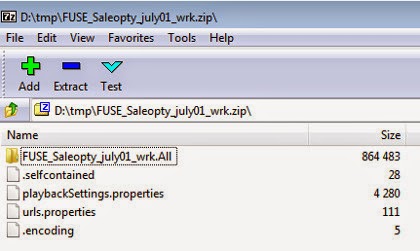
All the exported files are essentially zip files and can be opened with any unzip tool.  For example, here is the script named FUSE_Saleopty_july_1_wrk.zip we have exported.  Within folder FUSE_Saleopty_july_1_wrk.All, there is a subfolder named databanks which hold input data that can be automatically fed into your Web application during Load Testing.[4] Besides folders, the script also holds other script assets.[6]


Import Scripts


After copying the load testing script to your Linux system, you can import it to OLT.  To import scripts, select Tools tab and Import... .

A file-upload wizard allows you to select the script (i.e., zip file) to OLT. Note that we have copied the script to our home directory. You should NOT copy it to the Default repository (i.e. /OFT) which will be the final destination of import.


When the script is imported into OLT (by default, the destination of import is the Default repository), it renames the file as FUSE_Saleopty_july01_wrk.openScriptZip.  It then unzips the imported script.


For example, a new folder named FUSE_Saleopty_july01_wrk.All was created in the Default repository:
  • ${OATS_HOME}/OFT
In the next OATS article, we will show how to create a scenario from the imported load testing script.

References

  1. Oracle Application Testing Suite (OATS)
  2. Oracle Load Testing (OLT)
  3. How to Create Load Testing Scripts Using OpenScript
  4. How to Configure Scripts to use Databanks in OATS 
  5. Oracle Application Testing Suite (OATS): Few Tips & Tricks
  6. Best approaches to script assets
    • Do not use Absolute Paths when referring to assets or saving assets. Oracle Load Testing does not support absolute paths.
    • OpenScript, Oracle Test Manager, Oracle Load Testing, and all command-line agents should all use the same shared repository names and paths.
    • Do not refer to an asset in another repository by a relative path.
  7. OATS: Tie All Processes Together — from OpenScript to Scenario (Xml and More)


    © Travel for Life Guide. All Rights Reserved.

    Analytical Insights on Health, Culture, and Security.