Cross Column

Showing posts with label GATE Embedded. Show all posts

Wednesday, May 25, 2011

Cannot get GATE Home. Pease set it manually!

When you run your application using GATE Embedded, you often run into an error:
  • Cannot get GATE Home. Pease set it manually!
This means that you need to set gate.home property before calling Gate.init(). You can do that in two ways:
  1. In your Java code
    • Gate.setGateHome(File)
  2. In the Java command that launches your program
    • -Dgate.home=path/to/gate/home
GATE also needs to initialize the paths to local files of interest like:
  • Installed plugins home
  • Site configuration file
  • User configuration file
if these are not at their default locations. To help configure these paths, you can use the following system properties:
gate.home
sets the location of the GATE install directory. This should point to the top level directory of your GATE installation. This is the only property that is required. If this is not set, the system will display an error message and them it will attempt to guess the correct value.
gate.plugins.home
points to the location of the directory containing installed plugins (a.k.a. CREOLE directories). If this is not set then the default value of {gate.home}/plugins is used.
gate.site.config
points to the location of the configuration file containing the site-wide options. If not set this will default to {gate.home}/gate.xml. The site configuration file must exist!
gate.user.config
points to the file containing the user’s options. If not specified, or if the specified file does not exist at startup time, the default value of gate.xml (.gate.xml on Unix platforms) in the user’s home directory is used.
load.plugin.path
is a path-like structure, i.e. a list of URLs separated by ‘;’. All directories listed here will be loaded as CREOLE plugins during initialisation. This has similar functionality with the the -d command line option.
gate.builtin.creole.dir
is a URL pointing to the location of GATE’s built-in CREOLE directory. This is the location of the creole.xml file that defines the fundamental GATE resource types, such as documents, document format handlers, controllers and the basic visual resources that make up GATE. The default points to a location inside gate.jar and should not generally need to be overridden.
As described above, the only property that is required is gate.home if you lay out other resources at their default locations.

In this article, we will show you one way to run your GATE application in Oracle WebLogic Server (WLS). This allows you to test your deployed application quickly.

Classloading in Java Platform and Oracle WebLogic Server

If the application you are creating has dependencies on some third-party code (for example, gate.jar), what is the proper way to package these libraries so that they can be used by a portable J2EE application?

In the J2EE platform, there are mechanisms[4] available for including libraries in a portable application:
  1. The WEB-INF/lib Directory
  2. Bundled Optional Classes
  3. Installed Packages (or installed optional packages mechanism)
Since these mechanisms are well-documented, they will not be repeated here.

To use these third-party libraries along with your application code, you face the decision of which packaging mechanism to choose. The decision you make can have major effects on the following:
  • The portability of your application
  • The size of your WAR and EAR files
  • The maintenance of the application
  • Version control as libraries and application servers are updated
Some solutions for packaging library JAR files are specific to a particular application server: for example, placing a library JAR file in an application server's classpath so that applications can use the APIs in that JAR file. Some application servers have container-specific locations where you can place JAR files to be shared by applications and modules. But these mechanisms are not portable, unlike the mechanisms provided by the J2EE platform.

In this article, we will introduce one WLS-specific mechanism to use for the GATE installation. This will allow you to quick-test your GATE application.

In WLS, you can place JAR files to be shared by applications and modules at the following location:
  • $DOMAIN_DIR/lib
This is the domain library directory. The domain library directory is one mechanism that can be used for adding application libraries to the server classpath. The jars located in this directory will be picked up and added dynamically to the end of the server classpath at server startup. The jars will be ordered lexically in the classpath.

It is possible to override the $DOMAIN_DIR/lib directory using the -Dweblogic.ext.dirs system property during startup. This property specifies a list of directories to pick up jars from and dynamically append to the end of the server classpath using java.io.File.pathSeparator as the delimiter between path entries.

Default GATE Installation Layout

The GATE architecture is based on components. Each component (i.e., a Java Beans), is a reusable chunks of software with well-defined interfaces that may be deployed in a variety of contexts.

You can define applications with processing pipelines using these reusable components. In GATE, these resources are officially named CREOLE (i.e., Collection of REusable Objects for Language Engineering). You can read this article to understand how GATE plugins and CREOLE resources are configured.

In the following, we show how GATE's resources are laid out in the WLS' domain library directory:
/wls_domain/lib/gatehome (i.e., GATE's home directory)
+-- lib/
+-- Bib2HTML.jar
+-- GnuGetOpt.jar
+-- ...
+-- plugins/
+-- ANNIE/
+-- ANNIE_with_defaults.gapp
+-- build.xml
+-- creole.xml
+-- resources/
+-- Tools/
+-- build.xml
+-- creole.xml
+-- doc/
+-- resources/
+-- src/
+-- tools.jar
+-- gate .xml

After you've installed GATE's libraries and resources in the domain library directory. The next step you need to do is setting gate.home property in wls_domain/bin/setDomainEnv.sh:

EXTRA_JAVA_PROPERTIES=" ${EXTRA_JAVA_PROPERTIES} -Dweblogic.security.SSL.ignoreHostnameVerification=true -Dgate.home=${DOMAIN_HOME}/lib/gatehome"
export EXTRA_JAVA_PROPERTIES

Final Words


As mentioned before, this is not the best way to configure GATE's installation in a WLS. However, this approach will allow you to test your deployed GATE application quickly on it.

The domain library directory in WLS is intended for JAR files that change infrequently and are required by all or most applications deployed in the server, or by WebLogic Server itself. For example, you might use the lib directory to store third-party utility classes that are required by all deployments in a domain. You can also use it to apply patches to WebLogic Server.

The domain library directory is not recommended as a general-purpose method for sharing a JARs between one or two applications deployed in a domain, or for sharing JARs that need to be updated periodically. If you update a JAR in the lib directory, you must reboot all servers in the domain in order for applications to realize the change. If you need to share a JAR file or Java EE modules among several applications, use the Java EE libraries feature here. Alternatively, you can write custom class loaders to better fit your application's needs.


References
  1. Packaging Utility Classes or Library JAR Files in a Portable J2EE Application
  2. Understanding WebLogic Server Application Classloading
  3. Overview of WebLogic Server Application Classloading
  4. Mechanisms for Using Libraries in J2EE Applications
  5. Class Gate
  6. GATE Embedded
  7. Using System Properties with GATE
  8. GATE Plugins and CREOLE Resources

Friday, March 4, 2011

How to Create a Standalone Application Using GATE Embedded

General Architecture for Text Engineering or GATE is a Java suite of tools originally developed at the University of Sheffield beginning in 1995 and now used worldwide by a wide community of scientists, companies, teachers and students for all sorts of natural language processing tasks, including information extraction in many languages.

For non-programmers, you can use GATE Developer for all of the NLP tasks. For programmers, you can use GATE Embedded to embed its language processing functionality in your applications. In this article, we will demontrate how to use GATE in a standalone application named GoldFish.

Gold Fish Example

Andrew Golightly has noticed a lot of programmers having problems running GATE outside of the GUI (i.e., wanting to run it as a standalone program).

So, he has written a sample program which essentially implements the "Goldfish" example in the User Guide for GATE (see http://www.gate.ac.uk/sale/tao/index.html#x1-220002.7).

This program counts the number of times the word "Goldfish" appears in a sentence. It uses three Processing Resources (PRs) to achieve that:
  • DefaultTokeniser
  • SentenceSplitter
  • GoldFish
The first two PRs are provided in ANNIE plugin while the third is a new PR provided in this sample program. This sample program was created in 2003 and is a bit dated. This article tries to fill in the gaps and show what changes are needed from the original program provided by Andrew.

BootStrap Wizard

To create a new PR you need to:
  • Write a Java class (i.e., GoldFish.java) that implements GATE’s beans model
  • Compile the class, and any others that it uses, into a Java Archive (JAR) file
  • Write some XML configuration data (i.e., creole.xml) for the new resource
  • Tell GATE the URL of the new JAR and XML files.
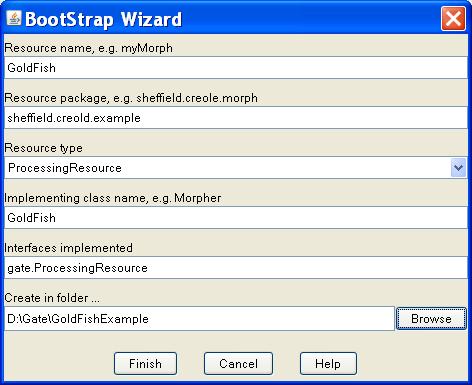
GATE Developer helps you with this process by creating a set of directories and files that implement a basic resource, including a Java code file and a Makefile. This process is called ‘bootstrapping’. To bootstrap, you do:
  • Start up GATE Developer
  • Start up BootStrap Wizard (Tools > BootStrap Wizard)
  • Fill in the information as shown below

A new folder named GoldFish is created as follows:

GoldFish/

+-- classes/

+-- src/
put all your Java sources in here.
+-- lib/

+-- resources/
any external files used by your plugin (e.g. configuration files,
JAPE grammars, gazetteer lists, etc.) go in here.
+-- build.xml
Ant build file for building your plugin.
+-- build.properties
property definitions that control the build process go in here,
in particular, make sure that gate.home points to your copy of GATE.
+-- creole.xml
plugin configuration file for GATE - edit this to add parameters, etc.,
for your resources.


For my environment, I need to update gate.home property in build.properties to point to my new GATE installation location:
gate.home=D:/Gate/gate-6.0-build3764-BIN

Eclipse


Next we use Eclipse IDE for our project development. You can proceed as follows:

  • Start up Eclipse
  • Bring up New Project Dialog (File > New > Project)
  • Select "Java Project from Existing Ant Buildfile" wizard
  • Specify GoldFish as your project name
  • Select GoldFish/build.xml as your Ant buildfile
  • Click Finish

A new project named GoldFish is created as below:
Under src folder, there is a file named GoldFish.java in a package named sheffield.creole.example, which is created by BootStrap Wizard. Now, let's copy two files:


from GATE example code repository and put them in src/sheffield/creole/example . Note that you need to fix up package name (i.e., from andrewgolightly.nlp.gate to sheffield.creole.example) and class name (from Goldfish to GoldFish). So, your src/sheffield/creole/example folder looks like this:

src/
+--sheffield/
+--creole/
+-- example/
+-- GoldFish.java
+-- TotalGoldfishCount.java


Before we proceed, we need to add two statements below Gate.init() in TotalGoldfishCount.java:

// need resource data for GlodFish
Gate.getCreoleRegister().registerDirectories(
new File(System.getProperty("user.dir")).toURL());
// need ANNIE plugin for the Defaulttokeniser and SentenceSplitter
Gate.getCreoleRegister().registerDirectories(
new File(Gate.getPluginsHome(), ANNIEConstants.PLUGIN_DIR).toURL()
);

Without these fixes, you'll see the following ResourceInstantiationException exception:

gate.creole.ResourceInstantiationException: Couldn't get ...

Next, you need to edit the Run/Debug Settings of project properties to add a single argument:


testFile.txt

This is our input document to be processed by the GATE pipeline. You can copy it from here.

Now we need to compile the class and package it into a JAR file. The bootstrap wizard creates an Ant build file that makes this very easy – so long as you have Ant set up properly, you can simply run
ant jar

from command line. This will compile the Java source code and package the resulting classes into GoldFish.jar.

Finally, you can run TotalGoldfishCount by right selecting it from Package Explorer(TotalGoldfishCount.java > Run As > Java Application). If everything was set up appropriately, you should see the following output from the console:

== OBTAINING DOCUMENTS ==
1) testFile.txt -- success
== USING GATE TO PROCESS THE DOCUMENTS ==
* Loading gate.creole.tokeniser.DefaultTokeniser ... done
* Loading gate.creole.splitter.SentenceSplitter ... done
* Loading sheffield.creole.example.GoldFish ... done
Creating corpus from documents obtained...done
Running processing resources over corpus...done
== DOCUMENT FEATURES ==
The features of document "/D:/Gate/GoldFishExample/GoldFish/testFile.txt" are:
*) Number of tokens --> 56
*) Total "Goldfish" count --> 9
*) Number of words --> 46
*) Number of characters --> 322
*) Number of sentences --> 7

Demo done... :)

© Travel for Life Guide. All Rights Reserved.

Analytical Insights on Health, Culture, and Security.