Using FlexBuilder 3 and attempting to commit a file to SVN Repository, I bumped into the following error:
commit -m "Updated fr_FR version" D:/Adobe/.../fr_FR/search.properties
Attempted to lock an already-locked dir
svn: Working copy 'D:\Adobe\...\fr_FR' locked
Based on SVN help, it says that "svn cleanup" can do the following:
Recursively clean up the working copy, removing locks, resumingunfinished operations, etc.
When cleanup command was issued, I bumped into another issue:
svn: Error replacing text-base of 'search.properties'svn: Can't move 'src\assets\search\locale\fr_FR\.svn\tmp\text-base\search.properties.svn-base' to 'src\assets\search\locale\fr_FR\.svn\text-base\search.properties.svn-base': The system cannot find the path specified.
To fix this issue, I manually added a new folder named "text-base" in ...\fr_FR\.svn subfolder. Finally, I was able to commit my file to the SVN repository.
Learn More

Showing posts with label Adobe. Show all posts
Showing posts with label Adobe. Show all posts
Monday, February 23, 2009


Wednesday, January 28, 2009
Not All Files Appear in AIR Export Release Build
As shown in Adobe bug database (i.e., FB-16266), not all files you need will appear in AIR Export Release Build.
I've found that there are two cases that files were not copied over:
FlexBuilder should have provided options for developers to pick and choose what files to be packaged into the final AIR application. It does. However, in my case, the above two files are simply not listed in "AIR File Contents" dialog and there is no way to choose them from.
The workaround for this issue is:
I've found that there are two cases that files were not copied over:
- Image file included using the following MXML statement:
<mx :Image source="assets/search/oracle_logo.png">
- Dynamically loaded resource bundle files:
_resourceModuleURL = "assets/search/search_" + _locale + ".swf";
_step = new ResourceBundleLoader(_resourceModuleURL);
FlexBuilder should have provided options for developers to pick and choose what files to be packaged into the final AIR application. It does. However, in my case, the above two files are simply not listed in "AIR File Contents" dialog and there is no way to choose them from.
The workaround for this issue is:
- At the last step of "Export Release Build" (i.e., AIR File Contents), click on Cancel instead of Finish. FlexBuilder will copy all files needed (except the ones that are known missing) to the bin-release folder.
- Copy missing files to their corresponding locations.
- Run adt manually to generate the final AIR application:
REM
set flexSdkDir="D:\Program Files\Adobe\Flex Builder 3\sdks\3.1.0"
set JAVA_HOME="C:\Program Files\Java\jre1.6.0_07\bin"

REM
set Path=%Path%;C:\WINDOWS\system32;C:\WINDOWS;C:\WINDOWS\System32\Wbem
set Path=%Path%;c:\Program Files\Winzip;D:\MKSNT;%flexSdkDir%\bin
set Path=%Path%;%JAVA_HOME%\bin
echo %Path%

set flexWorkDir="D:\myDocuments\Flex Builder 3"

adt -package -storetype pkcs12
 -keystore %flexWorkDir%/myDigitalCertificate.p12
 -storepass welcome -tsa none Search.air bin-release\Search-app.xml
 -C bin-release Search.swf -C src assets
Friday, January 23, 2009
Setting Web Services to A Different URL in ActionScript
Some Web Services don't provide a correct port address in its WSDL. To get around this issue, it requires developers to set new endpointURI in MXML/ActionScript files.
There are two ways of calling web service operations in Adobe Flex:
Using the first approach, you can set endpointURI on the WebService instance. The creationComplete event is thrown when the application is initialized. In this case, you can attach a listener (i.e., initApp()) to intercept the event and set the correct endpointURI on the WebService instance. Note that the new endpointURI set on the WebService instance applies to all operations defined in it.
Generated web service proxy files
The Import Web Service feature introspects a provided WSDL file and generates the following ActionScript class files:
For example, our service is named SearchService which is retrieved from the WSDL file. Using Import Web Service feature in FlexBuilder, it generates the following files:
This should work when you use the generated code to call web service operations directly. Without this fix, you will get the notorious stream error #2032.
I also noticed that there is a generated WSDL file in the project under .wsdl folder. It may be a good idea to change the URL in that WSDL file to be correct.
There are two ways of calling web service operations in Adobe Flex:
- Use Flex built-in WebService class
- Use web service proxy classes (automatically generated by WSDL Instrospection Wizard)
Using Flex Built-In WebService Class
Using the first approach, you can set endpointURI on the WebService instance. The creationComplete event is thrown when the application is initialized. In this case, you can attach a listener (i.e., initApp()) to intercept the event and set the correct endpointURI on the WebService instance. Note that the new endpointURI set on the WebService instance applies to all operations defined in it.
<?xml version="1.0" encoding="utf-8"?>
<mx:WindowedApplication
xmlns:mx=http://www.adobe.com/2006/mxml
layout="vertical"creationComplete="initApp()"
xmlns:search="search.*">

<mx:WebService
id="myWebService"
wsdl="http://www.example.com:7753/search/query/Search?WSDL"
showBusyCursor="true">

<mx:operation name="doSimpleSearch" resultFormat="XML"
fault="onFault(event)"
result="showResult(event)"/>

<mx:operation name="login" resultFormat="XML"
fault="onFault(event)"
result="showResult(event)"/>

</mx:WebService>

<mx:Script>


private function initApp():void
{
myWebService.endpointURI =
  "http://www.example.com:7753/search/query/Search";
myWebService.login("yyy", "yyy");
}
]]>

</mx:WindowedApplication>
Using Web Service Proxy Classes
You can also use the Flex Builder Import Web Service feature to automatically generate connection code for invoking SOAP-based web service operations. The generated code includes client-side (ActionScript) web service proxy classes that return strongly typed objects. You can use the generated code to call web service operations directly and to pass strongly typed objects as operation parameters.Generated web service proxy files
The Import Web Service feature introspects a provided WSDL file and generates the following ActionScript class files:
- BaseServiceName.as
- IServicename.as
- etc.
For example, our service is named SearchService which is retrieved from the WSDL file. Using Import Web Service feature in FlexBuilder, it generates the following files:
- BaseSearchService.as
- ISearchService.as
- etc.
BaseSearchServicePort.endpointURI = "http://myserver:7777/search/query/Search"
This should work when you use the generated code to call web service operations directly. Without this fix, you will get the notorious stream error #2032.
I also noticed that there is a generated WSDL file in the project under .wsdl folder. It may be a good idea to change the URL in that WSDL file to be correct.
Thursday, January 22, 2009
Two Ways of Calling Web Service in Flex
There are two ways of calling web service operations in Flex:
The <mx:WebService> tag gives you access to the operations of SOAP-compliant web services deployed on a web server.
See a working example here.
You can use the Flex Builder "Import Web Service" feature to automatically generate connection code for invoking SOAP-based web service operations. The generated code includes client-side (ActionScript) web service proxy classes that return strongly typed objects. You can use the generated code to call web service operations directly and to pass strongly typed objects as operation parameters. See the details on Adobe Flex 3 Help.
The following two tables compare these two approaches:
Notes
- Use Flex built-in WebService class
- Use web service proxy classes (automatically generated by WSDL Instrospection Wizard)
Flex Built-in WebService Class
The <mx:WebService> tag gives you access to the operations of SOAP-compliant web services deployed on a web server.
See a working example here.
Web Service Proxy Classes
You can use the Flex Builder "Import Web Service" feature to automatically generate connection code for invoking SOAP-based web service operations. The generated code includes client-side (ActionScript) web service proxy classes that return strongly typed objects. You can use the generated code to call web service operations directly and to pass strongly typed objects as operation parameters. See the details on Adobe Flex 3 Help.
The following two tables compare these two approaches:
| Flex WebService Class | |
| Example | |
| Request |
|
| Response | myWebService.login.lastResult |
| Parameters |
|
| Advantage(s) |
|
| Disadvantage(s) |
|
| Generated Web Service Proxy Class | |
| Example | <search:OracleSearchService id="myWebService"> <search:login_request_var> <search:Login_request> <search:username>{tiNameInput.text}</search:username> <search:password>{tiPassInput.text}</search:password> </search:Login_request> </search:login_request_var> </search:OracleSearchService> |
| Request | myWebService.login_send() |
| Response | myWebService.login_lastResult |
| Parameters | Strongly typed objects (i.e., Login_request class instance). |
| Advantage(s) |
|
| Disadvantage(s) |
|
Notes
- Based on WSDL's schema definition, WSDL introspection wizard generates a set of web service proxy classes in advance. At runtime, operation's parameters are provided as strongly-typed objects (i.e., content objects) and marshaled/validated to SOAP message body.
- The mappings between the WSDL definition and the MXML Web services declaration depend on the operation style (Document or RPC), encoding mechanism used (literal or encoded), type (simple or complex) of parameter, and number of parameters. (You can read "Develop Web services clients with Macromedia Flex" article to understand the mapping issues although it is a little bit out-of-date).
How to Make External Components Available to Your Flex Code
MXML tags correspond to ActionScript classes or properties of classes. Flex parses MXML tags and compiles a SWF file that contains the corresponding ActionScript objects. For example, Flex provides the ActionScript HBox class that defines the Flex HBox control. In MXML, you create a HBox control by using the following MXML statement:
When you declare a control using an MXML tag, you create an instance object of that class. This MXML statement creates a HBox object, and initializes the borderSkin property of the HBox object to the components.TopBorder Class. To avoid compilation error, you need to make externally defined classes and packages available to your code by using import statement. For components.TopBorder, you need to import it like this:
To avoid compilation error, you need to add an namespace declaration as this:
Because the reference of components.VStack has made components package available to your code by MXML compiler, you don't need to import it again.
In summary, you always need to make externally defined classes and packages available to your Flex code by:
<mx:HBox id="mainWindow"  width="100%" height="30"
borderSkin="{components.TopBorder}" backgroundColor="#A5A7Ad"
backgroundAlpha="0.75"  cornerRadius="15"  paddingLeft="0"
paddingTop="0" paddingRight="0" paddingBottom="0"
verticalGap="0" verticalAlign="middle">
When you declare a control using an MXML tag, you create an instance object of that class. This MXML statement creates a HBox object, and initializes the borderSkin property of the HBox object to the components.TopBorder Class. To avoid compilation error, you need to make externally defined classes and packages available to your code by using import statement. For components.TopBorder, you need to import it like this:
<mx:script>It is possible for you to omit this import statement if you have other components from the same package being referenced in the same MXML file. Say, in the same MXML file that references components.TopBorder, we also have the following MXML tag which references VStack from the same package (i.e., components):
<![CDATA[import components.TopBorder;]]>
</mx:Script>
<components:VStack id="worklistComp"  width="100%" height="100%"
headerStyleName="StackLabel"  backgroundColor="#e8eaed"  boderThickness="0">
To avoid compilation error, you need to add an namespace declaration as this:
<mx:windowedapplication xmlns:components="components.*"
width="452" height="364"  layout="vertical" ...>
Because the reference of components.VStack has made components package available to your code by MXML compiler, you don't need to import it again.
In summary, you always need to make externally defined classes and packages available to your Flex code by:
- If you reference it in MXML tag, you use xmlns attribute to declare a prefix and its path (i.e., xmlns:components="components.*") and use that prefix in the tag name (i.e., <components:VStack>).
- If you reference it in MXML attribute or node value, you use ActionScript import statement to make it available.
Thursday, January 15, 2009
Importing Foreign Projects from SVN in Flex Builder
How does one go about opening someone else's project in Flex Builder using Subversion? You can directly import a project without creating a dummy one first and there are two ways of achieving this:

To install Subversion in Flex Builder, you can get the the Subclipse plugin and follow the instructions as shown here.
(1) From File menu...
- File > Import > Other
- Select Checkout Projects from SVN
- Check Use existing repository location: and select svn://rws...
- Select a project folder
- Use the default setting in Checkout from SVN dialog.
(2) From SVN Respository Exploring perspective...
- Browse in the SVN navigator to the project folder that you want to include into your existing workspace.
- Right click and bring up context menu.
- Choose Checkout...
- Checkout from SVN dialog will pop up and offer to check out the project in the current workspace.

To install Subversion in Flex Builder, you can get the the Subclipse plugin and follow the instructions as shown here.
Wednesday, January 14, 2009
Flash Debug Player and its Configuration
To work with Flex Builder Debugger, you need the Flash debug player. This is installed when you install Flex Builder. But, this may fail or you may upgrade Flash player independently. To determine if you have the debug player installed, you can navigate to: Version test for Adobe Flash Players. In ActionScript, you can use Capabilities.isDebugger property to test if you have the debug player installed.
Flash debug player is different from the standard Flash Player. It includes additional functionality that the standard player does not have such as:
The debug version of Flash Player can be configured by the mm.cfg text file in the system. You can use any text editor to create it. The following table lists the properties that you can set in the mm.cfg file:
For example, the following sample mm.cfg file enables error reporting and trace logging:
The following table shows where to create mm.cfg for several operating systems.
The following table shows the default flashlog.txt file location:
Being a text file, there are several ways to read from the log file:
Flash debug player is different from the standard Flash Player. It includes additional functionality that the standard player does not have such as:
- Logs trace() statements (logging in the Flash debug player is turned off by default)
- Works with Flex Builder Debugging Perspective
- Works with the Flex Builder 3 Profiler
The debug version of Flash Player can be configured by the mm.cfg text file in the system. You can use any text editor to create it. The following table lists the properties that you can set in the mm.cfg file:
| Property | Description |
ErrorReportingEnable | Enables the logging of error messages. Set the The default value is 0. |
MaxWarnings | Sets the number of warnings to log before stopping. The default value of the Set the Set the |
TraceOutputFileEnable | Enables trace logging. Set The default value is 0. |
TraceOutputFileName | Note: Beginning with the Flash Player 9 Update, Flash Player ignores the Sets the location of the log file. By default, the debugger version of Flash Player writes error messages to a file named flashlog.txt, located in the same directory in which the mm.cfg file is located. Set TraceOutputFileName=<fully qualified path/filename> |
For example, the following sample mm.cfg file enables error reporting and trace logging:
The location of mm.cfg and its log file (i.e., flashlog.txt) is determined by OS. However, you can update the log file location and name through theErrorReportingEnable=1
TraceOutputFileEnable=1
TraceOutputFileName property.The following table shows where to create mm.cfg for several operating systems.
| Operating System | Create mm.cfg file in this directory |
| Macintosh OS X | MacHD:Library:Application Support:macromedia: |
| Microsoft Windows Vista | C:\Users\user_name\ |
| Microsoft Windows 2000/XP | C:\Documents and Settings\user_name\ |
| Microsoft Windows 95/98/ME | %HOMEDRIVE%\%HOMEPATH%\ |
| Linux | /home/user_name |
The following table shows the default flashlog.txt file location:
| Operating System | Location of flashlog.txt |
| Macintosh OS X | MacHD:Users:user_name:Library:Preferences:Macromedia:Flash Player:Logs:flashlog.txt |
| Microsoft Windows Vista | C:\Users\user_name\AppData\Roaming\Macromedia\Flash Player\Logs\flashlog.txt |
| Windows 95/98/ME/2000/XP | C:\Documents and Settings\user_name\Application Data\Macromedia\Flash Player\Logs\flashlog.txt |
| Linux | /home/user_name/.macromedia/Flash_Player/Logs/flashlog.txt |
Being a text file, there are several ways to read from the log file:
- Notepad or its equivalent
- Tail or some variant
- FlashTracer
- Using the tail view in Aptana
Monday, January 12, 2009
Tools for Debugging AIR Applications
| Tools | Descriptions |
| Flex Builder Debugger |
|
| ADL (AIR Debug Launcher) |
|
| Third-party Tools (ServiceCapture, Charles, and Ethereal/Wireshark) |
|
| AIR HTML Introspector |
|
Monday, December 8, 2008
Debugging Tips for Air Applications in Flex
When you run (or debug) either your own or other people provided Air applications, sometimes it won't start even you click the Run (or Debug) icon in FlexBuilder. Here lists three scenarios and their possible solutions in the following table:
If the above solutions don't apply to your own situation, the last resort is to examine Eclipse Error Log file (i.e., ".log"). This file stores messages from the Eclipse environment. The default location of this log file on Windows XP is c:\Documents and Settings\user_name\workspace\.metadata\.log.
For MacOS and Linux, the default location is also in the workspace directory, but files and directories that begin with a dot are hidden by default. As a result, you must make those files visible before you can view the log file.
One of the possible causes described above is related to the incompatible tech stack versions. Therefore, it's essential for you to know what compile/linkage/runtime environment your AIR application is compiled/linked/run against. To figure out these version information, here we list where or how to find them:
After you resolve all setup issues, you should be able to run debugger. AIR supports debugging directly, so you do not need a debug version of the runtime (as you would with Adobe® Flash® Player). To conduct debugging in Flex, see Debugging Flex Applications authored by Mike Morearty.
| Possible Cause | Possible Solution |
| Wrong AIR runtime version specified in the xmlns attribute of application property in the application descriptor file. | Change <application xmlns="http://ns.adobe.com/air/application/1.1"> to <application xmlns="http://ns.adobe.com/air/application/1.0"> if you're running AIR 1.0 runtime instead of 1.1. This could happen when you're running other people provided application and your Flex Builder version is different from his/hers or you've updated your Flex Builder to a newer version. The error message should be "Invalid application descriptor: descriptor does not match runtime version." or "error while loading initial content" when you debug it. |
| A zombie adl.exe prevents AIR application from running. | Bring up Task Manager and if there is a zombie process called adl.exe (i.e., AIR Debug Launcher), kill it. This can be helpful if Flex complains that it cannot connect to the debug process. Sometimes, you also need to restart FlexBuilder to fix it. |
| Caching Problem | Go to your application descriptor file and bump up your version number. I found out that this can be helpful sometimes. |
If the above solutions don't apply to your own situation, the last resort is to examine Eclipse Error Log file (i.e., ".log"). This file stores messages from the Eclipse environment. The default location of this log file on Windows XP is c:\Documents and Settings\user_name\workspace\.metadata\.log.
For MacOS and Linux, the default location is also in the workspace directory, but files and directories that begin with a dot are hidden by default. As a result, you must make those files visible before you can view the log file.
One of the possible causes described above is related to the incompatible tech stack versions. Therefore, it's essential for you to know what compile/linkage/runtime environment your AIR application is compiled/linked/run against. To figure out these version information, here we list where or how to find them:
| Version Information | Where to Find |
| Flex Builder | Read from "Add or Remove Programs" or "About Adobe Flex Player..." |
| Adobe AIR runtime | Read from "Add or Remove Programs." |
| Adobe Flash Player ActiveX | Read from "Add or Remove Programs." |
| Required AIR runtime version for AIR application to run | Read the xmlns attribute of application property in the application descriptor file. |
| Minimum player version that will run the compiled AIR application | Read the target-player value from global Flex configuration file air-config.xml. The default location of this log file on Windows XP is C:\Program Files\Adobe\Flex Builder 3\sdks\3.1.0\frameworks\. |
| Which SDK to link with for the AIR application | Read default Flex SDK from Installed Flex SDKs (i.e., Window > Preferences > Flex > Installed Flex SDKs). Note that it's possible to target different Flash players (i.e., either Player 9 or Player 10) with the same SDK. See Targeting Flash Player 10 for details. |
After you resolve all setup issues, you should be able to run debugger. AIR supports debugging directly, so you do not need a debug version of the runtime (as you would with Adobe® Flash® Player). To conduct debugging in Flex, see Debugging Flex Applications authored by Mike Morearty.
Thursday, December 4, 2008
Loading SWFs at Runtime in Flex
Loading SWFs to an application at runtime all use Loader class in Flex. This includes SWFLoader and ModuleLoader which delegate to Loader class internally. Note that Modules are SWF files that can be loaded and unloaded by an application. Their loading is managed by ModuleManager which ensure that there is only one copy of a module loaded, no matter how many times you call the load() method for that module.
The Loader class can be used to load other external display assets such as image files (i.e., JPG, PNG, or GIF file) . Also you can use the URLLoader class to load text or binary data. However, we only focus on loading SWFs with Loader class in this article.
SWF files can be loaded over HTTP or from the local file system at runtime. There are four basic steps to using the Loader class:
The first decision to make is into which security domain the loaded SWF file should be placed. The choice of security domain is meaningful only if you are loading a SWF file that might come from a different domain (a different server) than the loading SWF file. When you load a SWF file from your own domain, it is always placed into your security domain. But when you load a SWF file from a different domain, you have two options. You can allow the loaded SWF file to be placed in its "natural" security domain, which is different from that of the loading SWF file; this is the default. The other option is to specify that you want to place the loaded SWF file placed into the same security domain as the loading SWF file, by setting myLoaderContext.securityDomain to be equal to SecurityDomain.currentDomain. This is called import loading, and it is equivalent, for security purposes, to copying the loaded SWF file to your own server and loading it from there. In order for import loading to succeed, the loaded SWF file's server must have a policy file trusting the domain of the loading SWF file.
Note that content in the Air application security sandbox cannot load content from other sandboxes into its SecurityDomain.
For more information, see the following:
The second decision to make is into which application domain within the security domain that loaded SWF file is placed. However, you specify it only when loading a SWF file written in ActionScript 3.0 (not a SWF file written in ActionScript 1.0 or ActionScript 2.0).
Application domains are used to partition classes that are in the same security domain. They allow multiple definitions of the same class to exist and allow children to reuse parent definitions.
Every security domain is divided into one or more application domains, represented by ApplicationDomain objects. Application domains are not for security purposes; they are used to partition classes that are in the same security domain. If you are loading a SWF file from another domain, and allowing it to be placed in a separate security domain, then you cannot control the choice of application domain into which the loaded SWF file is placed; and if you have specified a choice of application domain, it will be ignored. However, if you are loading a SWF file into your own security domain (either because the SWF file comes from your own domain, or because you are importing it into your security domain) then you can control the choice of application domain for the loaded SWF file.
You have four choices for what kind of ApplicationDomain property to use:
If you are loading a SWF file using SWFLoader that comes from a different domain (a different server) than the loading SWF file, the secuirty domain decision will be made based on trustContent property on the SWFLoader object. If the trustContent property is set to be true, Flex will place the loaded SWF file into the same security domain as the loading SWF file. Otherwise, the loaded SWF file will be placed in its "natural" security domain, which is different from that of the loading SWF file. If trustContent property is set to be false and the loaded SWF file is placed into the same security domain as the loading SWF file, it also set the application domain to be child of the loader's application domain which allows the loaded SWF file to use the parent's classes directly. If any of the settings violate security restrictions, an securityError can be thrown.
Module files can be loaded over HTTP or from the local file system at runtime. However, a Flex module must be in the same security domain as the application (SWF) that loads it. For example, if the loading SWF is in a remote security domain, the loaded module will be placed in the same security domain as the loading SWF file; otherwise, ModuleLoader didn't set the securityDomain property in the LoaderContext. By default, modules are loaded into the child of the current application domain. You can specify a different application domain by using the applicationDomain property of the ModuleLoader class.
When you're using modules in an AIR application any module SWF must be located in the same directory as the main application SWF or one of its subdirectories, which ensures that like the main application SWF, the module SWF is in the AIR application security sandbox.
The Loader class can be used to load other external display assets such as image files (i.e., JPG, PNG, or GIF file) . Also you can use the URLLoader class to load text or binary data. However, we only focus on loading SWFs with Loader class in this article.
SWF files can be loaded over HTTP or from the local file system at runtime. There are four basic steps to using the Loader class:
- Create the Loader instance
- Create a URLRequest instance that specifies the SWF's location.
- Create a LoaderContext instance which has properties that define the following:
- The ApplicationDomain for the loaded SWF
- The SecurityDomain for the loaded SWF
- Pass the URLRequest instance and LoaderContext instance to the Loader instance's load() or loadBytes() methods.
When loading SWF files with the Loader.load() method, you have two decisions to make: into which security domain the loaded SWF file should be placed, and into which application domain within that security domain? When loading a SWF file with the Loader.loadBytes() method, you have the same application domain choice to make as for Loader.load(), but it's not necessary to specify a security domain, because Loader.loadBytes() always places its loaded SWF file into the security domain of the loading SWF file.
Security Domain Decision
The first decision to make is into which security domain the loaded SWF file should be placed. The choice of security domain is meaningful only if you are loading a SWF file that might come from a different domain (a different server) than the loading SWF file. When you load a SWF file from your own domain, it is always placed into your security domain. But when you load a SWF file from a different domain, you have two options. You can allow the loaded SWF file to be placed in its "natural" security domain, which is different from that of the loading SWF file; this is the default. The other option is to specify that you want to place the loaded SWF file placed into the same security domain as the loading SWF file, by setting myLoaderContext.securityDomain to be equal to SecurityDomain.currentDomain. This is called import loading, and it is equivalent, for security purposes, to copying the loaded SWF file to your own server and loading it from there. In order for import loading to succeed, the loaded SWF file's server must have a policy file trusting the domain of the loading SWF file.
Note that content in the Air application security sandbox cannot load content from other sandboxes into its SecurityDomain.
For more information, see the following:
- The security chapter in the Programming ActionScript 3.0 book
- The Flash Player 9 Security white paper
Application Domain Decision
The second decision to make is into which application domain within the security domain that loaded SWF file is placed. However, you specify it only when loading a SWF file written in ActionScript 3.0 (not a SWF file written in ActionScript 1.0 or ActionScript 2.0).
Application domains are used to partition classes that are in the same security domain. They allow multiple definitions of the same class to exist and allow children to reuse parent definitions.
Every security domain is divided into one or more application domains, represented by ApplicationDomain objects. Application domains are not for security purposes; they are used to partition classes that are in the same security domain. If you are loading a SWF file from another domain, and allowing it to be placed in a separate security domain, then you cannot control the choice of application domain into which the loaded SWF file is placed; and if you have specified a choice of application domain, it will be ignored. However, if you are loading a SWF file into your own security domain (either because the SWF file comes from your own domain, or because you are importing it into your security domain) then you can control the choice of application domain for the loaded SWF file.
You have four choices for what kind of ApplicationDomain property to use:
- Child of loader's ApplicationDomain. The default. You can explicitly represent this choice with the syntax new ApplicationDomain(ApplicationDomain.currentDomain). This allows the loaded SWF file to use the parent's classes directly, for example by writing new MyClassDefinedInParent(). The parent, however, cannot use this syntax; if the parent wishes to use the child's classes, it must call ApplicationDomain.getDefinition() to retrieve them. The advantage of this choice is that, if the child defines a class with the same name as a class already defined by the parent, no error results; the child simply inherits the parent's definition of that class, and the child's conflicting definition goes unused unless either child or parent calls the ApplicationDomain.getDefinition() method to retrieve it.
- Loader's own ApplicationDomain. You use this application domain when using ApplicationDomain.currentDomain. When the load is complete, parent and child can use each other's classes directly. If the child attempts to define a class with the same name as a class already defined by the parent, the parent class is used and the child class is ignored.
- Child of the system ApplicationDomain. You use this application domain when using new ApplicationDomain(null). This separates loader and loadee entirely, allowing them to define separate versions of classes with the same name without conflict or overshadowing. The only way either side sees the other's classes is by calling the ApplicationDomain.getDefinition() method.
- Child of some other ApplicationDomain. Occasionally you may have a more complex ApplicationDomain hierarchy. You can load a SWF file into any ApplicationDomain from your own SecurityDomain. For example, new ApplicationDomain(ApplicationDomain.currentDomain.parentDomain.parentDomain) loads a SWF file into a new child of the current domain's parent's parent.
When a load is complete, either side (loading or loaded) may need to find its own ApplicationDomain, or the other side's ApplicationDomain, for the purpose of calling ApplicationDomain.getDefinition(). Either side can retrieve a reference to its own application domain by using ApplicationDomain.currentDomain. The loading SWF file can retrieve a reference to the loaded SWF file's ApplicationDomain via Loader.contentLoaderInfo.applicationDomain. If the loaded SWF file knows how it was loaded, it can find its way to the loading SWF file's ApplicationDomain object. For example, if the child was loaded in the default way, it can find the loading SWF file's application domain by using ApplicationDomain.currentDomain.parentDomain.
SWFLoader
If you are loading a SWF file using SWFLoader that comes from a different domain (a different server) than the loading SWF file, the secuirty domain decision will be made based on trustContent property on the SWFLoader object. If the trustContent property is set to be true, Flex will place the loaded SWF file into the same security domain as the loading SWF file. Otherwise, the loaded SWF file will be placed in its "natural" security domain, which is different from that of the loading SWF file. If trustContent property is set to be false and the loaded SWF file is placed into the same security domain as the loading SWF file, it also set the application domain to be child of the loader's application domain which allows the loaded SWF file to use the parent's classes directly. If any of the settings violate security restrictions, an securityError can be thrown.
ModuleLoader
Module files can be loaded over HTTP or from the local file system at runtime. However, a Flex module must be in the same security domain as the application (SWF) that loads it. For example, if the loading SWF is in a remote security domain, the loaded module will be placed in the same security domain as the loading SWF file; otherwise, ModuleLoader didn't set the securityDomain property in the LoaderContext. By default, modules are loaded into the child of the current application domain. You can specify a different application domain by using the applicationDomain property of the ModuleLoader class.
When you're using modules in an AIR application any module SWF must be located in the same directory as the main application SWF or one of its subdirectories, which ensures that like the main application SWF, the module SWF is in the AIR application security sandbox.
Security Models in Flash Player
To protect data from being transferred to unauthorized destinations without appropriate permission, Flash Player scrutinizes all requests to load or access external resources, or interact with other SWF files or HTML files. Each request a SWF file makes for an external resource (i.e., a resource not compiled into the SWF file making the request) is rejected or approved based on the following factors:
Much of Flash Player security is based on the region of origin from which the SWF file was opened or loaded. A SWF file from a specific Internet domain, such as www.example.com, can always access all data from that domain. These assets are put in the same security grouping, known as a security sandbox(or security domain). The following basic security rules always apply by default:
Based on security restrictions, the following are four of the most-often blocked external operations:
The specific method used to load the resource (not the file type of the resouorce) makes an external operation either a loading-data operation or a loading-content operation. For example, loading a SWF file using URLLoader's load() method is considered a loading-data operation; loading that same SWF file using Loader's load() method is considered a loading-content operation.
In the following table, it illustrates the approved and prohibited external operations in a remote sandbox.
For similar restriction rules applied to other sandbox types, see "Chapter 19--Flash Player Security Restrictions" in the Book "Essential ActionScript 3.0."
Flex assigns a security status known as a secuirty-sandbox-type to every SWF file opened by or loaded into Flash Player. To check a SWF file's security-sandbox-type at runtime, you can retrieve the value of the flash.system.Secuirty.sandboxType variable from within that SWF file (note that this property is only supported in Flash Player 8 or later). There are five possbile security-sandbox-types:
Being a desktop application runtime, the AIR security model is significantly different from the web browser security model. The application sandbox (i.e., assets that exist in the application directory ) in AIR provides direct access to privileged AIR specific system APIs. In return for access to these powerful APIs, some common dangerous APIs and patterns are restricted. For example, dynamic importing of remote content is generally prohibited and dynamic code generation techniques (e.g., using eval() and similar APIs to generate code at runtime) are heavily restricted. Only content loaded directly from the application home directory (via the app:/ URI scheme) can be placed in the application sandbox.
By default, files in the AIR application sandbox can cross-script any file from any domain (although files outside of the AIR application sandbox may not be permitted to cross-script the AIR file). By default, files in the AIR application sandbox can load content and data from any domain.
In the following table, it illustrates the approved and prohibited external operations in an application sandbox.
Air applications that write to the local file system are advised to write to app-storage:/. This directory exists separately from the application files on the user's computer, hence the files are not assigned to the application sandbox and present a reduced security risk. Developers are advised to consider the following:
Besides application sandbox, non-application sandbox contains all other content that is not loaded directly into the application sandbox. This includes local and remote content. Content loaded from outside the application observes the same security rules as content loaded in a web browser. For example, such content cannot call AIR APIs that provide access to the local file system.
In many cases, frameworks and existing code will work with little or no modification in the application sandbox. However, in some cases the developer will have to perform high-risk operations (such as importing of remote JavaScript) in a non-application sandbox, then carefully expose the resulting code and data back to the application sandbox via the SandboxBridge API.
- The external operation used to access the resource (i.e., Loader.load(), Sound.load(), etc.)
- The security domain (or security sandbox) of the SWF file performing the request
- The location of the resource
- The explicit access-permissions set for the resource as determined by either the resource's creator (i.e., the developer that compiles the SWF) or distributor (i.e., usually a web site administrator or socket server administrator)
- Creator permission means a SWF file contains the appropriate call to the Security class's static method allowDomain() or to allowInsecureDomain()
- Distributor permission means the resource distributor has made the appropriate cross-domain policy file available
- The explicit access-permissions granted by the user (e.g., permission to connect to the user's camera or microphone)
- The type of Flash Player running the SWF file (e.g., plug-in version, standalone version, Flash authoring tool test version)
- To simplify the testing of local content that is intended for web deployment, Adobe's Flex Builder automatically grants trust to projects under development.
- To test your application as your end user will see it, be sure to run it in its target environment.
What's Security Sandbox?
Much of Flash Player security is based on the region of origin from which the SWF file was opened or loaded. A SWF file from a specific Internet domain, such as www.example.com, can always access all data from that domain. These assets are put in the same security grouping, known as a security sandbox(or security domain). The following basic security rules always apply by default:
- Resources in the same security sandbox can always access each other.
- SWF files in a remote sandbox can never access local files and data.
Based on security restrictions, the following are four of the most-often blocked external operations:
- Loading content
- Loading content means retrieving any external resource to subsequently display or play it.
- Accessing content as data
- Accessing content as data means reading the internal information of a content resource. For example, reading the pixels of a bitmap.
- Cross-scripting
- Cross-scripting means accessing a loaded SWF file programmatically.
- Loading data
- The term "loading data" could be used to describe a wide variety of Flash Player load operations, including downloading files from a server via the FileReference class's instance method download(), loading binary data over a Socket object, and so on.
The specific method used to load the resource (not the file type of the resouorce) makes an external operation either a loading-data operation or a loading-content operation. For example, loading a SWF file using URLLoader's load() method is considered a loading-data operation; loading that same SWF file using Loader's load() method is considered a loading-content operation.
In the following table, it illustrates the approved and prohibited external operations in a remote sandbox.
| Operation | Resources in Local Domain | Remote Domain Resources from SWF's Region of Origin | Remote Domain Resources Outside SWF's Region of Origins |
| Loading Content | Prohibited | Allowed | Allowed |
| Accessing Content as Data | Prohibited | Allowed | Allowed by distributor permission only |
| Cross-scripting | Prohibited | Allowed | Allowed by creator permission only |
| Loading Data | Prohibited | Allowed | Allowed by distributor permission only |
For similar restriction rules applied to other sandbox types, see "Chapter 19--Flash Player Security Restrictions" in the Book "Essential ActionScript 3.0."
Sandbox Types
Flex assigns a security status known as a secuirty-sandbox-type to every SWF file opened by or loaded into Flash Player. To check a SWF file's security-sandbox-type at runtime, you can retrieve the value of the flash.system.Secuirty.sandboxType variable from within that SWF file (note that this property is only supported in Flash Player 8 or later). There are five possbile security-sandbox-types:
- remote(i.e., Security.REMOTE)
- Remote means the loaded SWF is from an Internet URL.
- local-with-filesystem(i.e., Security.LOCAL_WITH_FILE)
- Local-with-filesystem means the loaded SWF file is from local file system and was compiled with -use-network compiler flag set to be false.
- local-with-networking(i.e., Security.LOCAL_WITH_NETWORK)
- Local-with-networking means the loaded SWF file is from local file system and was compiled with -use-network compiler flag set to be true.
- local-trusted(i.e., Security.LOCAL_TRUSTED)
- Local-trusted means SWF file was opened from a trusted local location
- To verify which locations are trusted on a given computer,consult
- the trust files in the User Flash Player Trust directory (e.g. C:\Documents and Settings\JohnD\Application Data\Macromedia\Flash Player\#Security\FlashPlayerTrust on Windows XP)
- the Global Flash Player Trust directory(e.g., c:\WINNT\system32\Macromed\Flash\FlashPlayerTrust on Windows)
- the online Flash Player Settings Manager
- application(i.e., Security.APPLICATION)
- This SWF file is running in an AIR application, and it was installed with the package (AIR file) for that application.
Air Security Model
Being a desktop application runtime, the AIR security model is significantly different from the web browser security model. The application sandbox (i.e., assets that exist in the application directory ) in AIR provides direct access to privileged AIR specific system APIs. In return for access to these powerful APIs, some common dangerous APIs and patterns are restricted. For example, dynamic importing of remote content is generally prohibited and dynamic code generation techniques (e.g., using eval() and similar APIs to generate code at runtime) are heavily restricted. Only content loaded directly from the application home directory (via the app:/ URI scheme) can be placed in the application sandbox.
By default, files in the AIR application sandbox can cross-script any file from any domain (although files outside of the AIR application sandbox may not be permitted to cross-script the AIR file). By default, files in the AIR application sandbox can load content and data from any domain.
In the following table, it illustrates the approved and prohibited external operations in an application sandbox.
| Operation | Resources in the Application Sandbox | Non-SWF Resources in the Non-Application Sandbox | SWF Resources in the Non-Application Sandbox |
| Content Loading | Allowed | Allowed | Allowed |
| Accessing Content as Data | Allowed | Allowed | Allowed |
| Cross-Scripting | Allowed | n/a | SWF files in the application sandbox can cross-script SWF files in the non-application sandbox although SWF files from the non-application sandbox may not be permitted to cross-script SWF files in the application sandbox. |
| Data Loading | Allowed | Allowed | Allowed |
Air applications that write to the local file system are advised to write to app-storage:/. This directory exists separately from the application files on the user's computer, hence the files are not assigned to the application sandbox and present a reduced security risk. Developers are advised to consider the following:
- Include a file in an AIR file (in the installed application) only if it is necessary.
- Include a scripting file in an AIR file (in the installed application) only if its behavior is fully understood and trusted.
- Do not write to or modify content in the application directory. The AIR runtime prevents applications from writing or modifying files and directories using the app:/ URL scheme by throwing a SecurityError exception.
- Do not use data from a network source as parameters to methods of the AIR API that may lead to code execution. This includes use of the Loader.loadBytes() method and the JavaScript eval() function.
Besides application sandbox, non-application sandbox contains all other content that is not loaded directly into the application sandbox. This includes local and remote content. Content loaded from outside the application observes the same security rules as content loaded in a web browser. For example, such content cannot call AIR APIs that provide access to the local file system.
In many cases, frameworks and existing code will work with little or no modification in the application sandbox. However, in some cases the developer will have to perform high-risk operations (such as importing of remote JavaScript) in a non-application sandbox, then carefully expose the resulting code and data back to the application sandbox via the SandboxBridge API.
Enabing Keyword Substitution with SVN in Flex Builder
Similar to CVS, Subversion supports keyword substitution (i.e., substitute keywords--pieces of useful, dynamic information about a versioned file-- into the contents of the file itself).
Subversion defines the list of keywords available for substitution. That list contains the following five keywords, some of which have aliases that you can also use:
Simply adding keyword anchor text to your file does nothing special. Subversion will never attempt to perform textual substitutions on your file contents unless explicitly asked to do so. To tell Subversion whether or not to substitute keywords on a particular file, we again turn to the property-related subcommands. The svn:keywords property, when set on a versioned file, controls which keywords will be substituted on that file. The value is a space-delimited list of the keyword names or aliases found in the previous table.
In FlexBuilder, say, you want to add svn:keywords property to multiple files located in the same folder. Right click that folder, select Team > Set Property and fill in information like this:

Then click OK button to set it. To view the property settings on a specific file, you right click that file and select Team > Show Properties. A SVN Properties view will be displayed with name/value pairs. However, before you can view the SVN properties, you need to enable the view by selecting Window (Menu) > Other Views. A Show View dialog will pop up and you can select SVN Properties to enable it.

For example, say you have a versioned file named AbstractHeader.as with a file header like this:
With no svn:keywords property set on that file, Subversion will do nothing special. Now, let's enable substitution of the Id and HeadURL keyword by following above-described steps. Immediately after you commit this property change, Subversion will update your working file with the new substitute text as follows:
Subversion defines the list of keywords available for substitution. That list contains the following five keywords, some of which have aliases that you can also use:
| Keyword | Aliases |
| Date | LastChangedDate |
| Revision | LastChangedRevision or Rev |
| Author | LastChangedBy |
| HeadURL | URL |
| Id | n/a |
Simply adding keyword anchor text to your file does nothing special. Subversion will never attempt to perform textual substitutions on your file contents unless explicitly asked to do so. To tell Subversion whether or not to substitute keywords on a particular file, we again turn to the property-related subcommands. The svn:keywords property, when set on a versioned file, controls which keywords will be substituted on that file. The value is a space-delimited list of the keyword names or aliases found in the previous table.
In FlexBuilder, say, you want to add svn:keywords property to multiple files located in the same folder. Right click that folder, select Team > Set Property and fill in information like this:

Then click OK button to set it. To view the property settings on a specific file, you right click that file and select Team > Show Properties. A SVN Properties view will be displayed with name/value pairs. However, before you can view the SVN properties, you need to enable the view by selecting Window (Menu) > Other Views. A Show View dialog will pop up and you can select SVN Properties to enable it.

For example, say you have a versioned file named AbstractHeader.as with a file header like this:
/* Copyright (c) 2007, 2008, Oracle. All rights reserved.  */
/* $HeadURL$ */
/* $Id$ */
With no svn:keywords property set on that file, Subversion will do nothing special. Now, let's enable substitution of the Id and HeadURL keyword by following above-described steps. Immediately after you commit this property change, Subversion will update your working file with the new substitute text as follows:
/* Copyright (c) 2007, 2008, Oracle. All rights reserved.  */
/* $HeadURL: svn://rws65122fwks.us.oracle.com/AirGadgets/src/com/oracle/apps/search/AbstractHeader.as $ */
/* $Id: AbstractHeader.as 26 2008-12-04 00:58:26Z sguan $ */
Monday, October 20, 2008
Adobe Flex Developers' Resource List
Here are a list of Flex Resources:
- Adobe Community Help
- Flex Developer Center
- Flex.org (a community portal for Flex developers)
- Flex blogs
- Flex Support Center
- Flex Support Forums
- Adobe Enterprise Developer Support (This service requires an annual subscription.)
- Flex online documentation
- Flex 5 Days' training video
- Report Flex bug
- Free FlexBuilder 3 Pro for all education customers
Sunday, October 12, 2008
Item Renderer in Flex
Adobe Flex supports several controls that you can use to represent lists of items. These controls let the application user scroll through the item list and select one or more items from the list. All Flex list components are derived from the ListBase class, and include the following controls: DataGrid, HorizontalList, List, Menu, TileList, and Tree.
Each list control has a default mechanism for controlling the display of data, or view, and lets you override that default. To override the default view, you create a custom item renderer.
The following example shows how you can create a simple TileList item renderer which displays custom items with an icon and a label in the TileList control’s tiles.
TileListItemRenderer is an item renderer class which is defined in an MXML file named TileListItemRenderer.mxml as shown below:
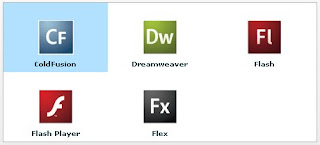
If you want to make a TileList control use this renderer, and have each renderer instance display an image and a label, you would write the following code:
However, in MXML, you can use the following syntax:
and the MXML compiler automatically creates the ClassFactory instance for you.
At runtime, Flex uses it to generate instances of item renderer class (i.e.,
TitleListItemRenderer).
Each list control has a default mechanism for controlling the display of data, or view, and lets you override that default. To override the default view, you create a custom item renderer.
The following example shows how you can create a simple TileList item renderer which displays custom items with an icon and a label in the TileList control’s tiles.
<mx:TileList
  dataProvider="{xmlListColl}"
  itemRenderer="TileListItemRenderer"
  columnCount="3"
  columnWidth="150"
  rowCount="2"
  rowHeight="100" />
TileListItemRenderer is an item renderer class which is defined in an MXML file named TileListItemRenderer.mxml as shown below:
<?xml version="1.0" encoding="utf-8"?>
  <mx:Canvas xmlns:mx="http://www.adobe.com/2006/mxml">
  <mx:Image source="{data.@src}" horizontalCenter="0" verticalCenter="0" />
  <mx:Label text="{data.@lbl}" fontWeight="bold" horizontalCenter="0" bottom="0" />
</mx:Canvas>

If you want to make a TileList control use this renderer, and have each renderer instance display an image and a label, you would write the following code:
var itemRenderer:ClassFactory = new ClassFactory(TitleListItemRenderer);
myTileList.itemRenderer = itemRenderer;
However, in MXML, you can use the following syntax:
<mx:TileList
      dataProvider="{xmlListColl}"
      itemRenderer="TileListItemRenderer"
and the MXML compiler automatically creates the ClassFactory instance for you.
At runtime, Flex uses it to generate instances of item renderer class (i.e.,
TitleListItemRenderer).
Subscribe to:
Posts (Atom)